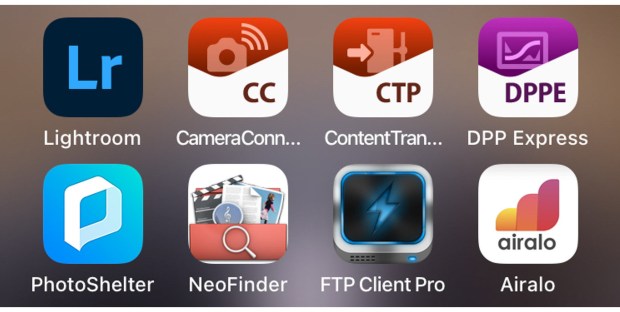
Back in February 2018 I concluded that I had failed to develop a decent workflow for the iPad or iPhone and that if I had the time I’d come back and continue with the quest. Since then I’ve occasionally used versions of my previous workflow and have dabbled with new options as they have come to my attention. Some six and a half years later I bring good news if you shoot with Canon and don’t mind paying for useful applications on subscription.
With the help of Canon and Adobe I think that I have now got a usable and developing workflow for importing, editing, captioning and transmitting images from my iPhone. All of this is currently only possible on my phone because my iPad is a bit out of date and cannot load one of the key applications. Apple announced a new version of the iPad Mini this week which prompted me to post this update.
Let’s talk about what has changed to make me so positive about what’s now possible:
Canon updated their Mobile Transfer app and renamed it Content Transfer Professional which allows you to do many things, amongst which are:
- Add a base caption to images in the camera by uploading an xmp file from the iOS device to a compatible Canon camera
- Import images from a Canon camera using either wifi or a suitable cable
- Add IPTC captions to single images or batches of images
- Transfer images to FTP servers
I was using Mobile Transfer on my phone and iPad before the update and it was useful – if a little buggy. Sadly the update is incompatible with my (seven year old) iPad. It works fine over wifi with my iPhone SE 2022 and by cable now that I have managed to source one of the specifically designed Anker 514 Lightning cables which, as I type, are back in stock via Canon UK.
They have also updated Canon Camera Connect and Digital Photo Professional Express which can be very useful for importing images and for editing CR3 RAW files respectively.
To add to all of that, Adobe’s latest version of Lightroom for iOS is very easy to use and very much like Adobe Camera RAW inside Photoshop as well as Lightroom Classic. Cropping and toning images inside iOS is far easier and more repeatable than it has ever been. I actually prefer the Lightroom option to the DPP Express one because Canon’s app isn’t very good with JPEGs and this kind of editing still works best with those rather than CR3s.
How does the workflow actually flow then? I hear at least one person asking. This is still a work in progress but I have now used it on a couple of urgent transfers on jobs where uploading from the camera with generic captions wasn’t good enough. The client wanted three or four toned, cropped and fully captioned images very quickly and it wasn’t convenient to get a laptop out.
- Shoot RAW and JPEG onto separate cards in the camera.
- Connect the camera to the iOS device and in Content Transfer Pro select the “Select and transfer from camera” option before importing the chosen images. I find it easier to do this with JPEGs at the moment but I will keep trying to incorporate RAWs as I get better at all of this.
- Still in Content Transfer Pro add a base IPTC caption (if that hadn’t already been done in camera) and add it to the imported images before adding specific details to the chosen pictures and overwrite the files when saving.
- Go to Adobe Lightroom and select the chosen captioned images and crop and tone them before using the share icon and “Export As” command where you choose options such as file type, dimensions, image quality and even custom filenames before hitting the tick symbol in the top right and then “save image”.
- From there you can go to the saved image (in Apple’s Photos is easiest) and either use Content Transfer Pro or another FTP Client (such as FTP client Pro) to upload the images.
For the record I also have the mobile versions of WeTransfer, Photoshelter and Dropbox on my iOS devices just in case the client prefers any of those.
Editing on iOS is still nowhere near as good as it is on a decent computer. Even if I have done an edit on a mobile I will always go back and do a ‘proper edit’ on one of my Macs when I have time and will usually create superior versions of the images but the quality of the screens on mobile devices just get better and better and so the difference (especially when mobile and web uses are the end product) is getting smaller and smaller. It also appears to be the case that Content Transfer Pro doesn’t offer the option to import RAW files and so if you want to do that you need to use Camera Connect.
There’s no doubt that this will all get easier on a iPad rather than an iPhone and my past experience with an iPad mini makes me think that I will go in that direction again soon, despite it being less powerful than the iPad Pro and slightly more cumbersome than one of the larger screened iPhones.
Of course if Camera Bits ever brings out an iOS version of Photo Mechanic then all bets are off and the workflow will almost certainly get a major update.
 Neil Turner Photographer
Always great to read your posts Neil,
Did you ever tried ShutterSnitch. I am using with the R3 and R5 MKII with an usb c adapter and a ethernet cable to transfer cr.3 files with the set button to ShutterSnitch on the iPad. Lightroom mobile for developing.
It is really bad that the Canon app CTP is not transferring raw files because the anker cable is so much smaller. That we have to pay for the Canon Apps is not a smart move.
LikeLike
I have tried ShutterSnitch many times and really don’t like it. Most of my rapid transfer work is direct FTP from camera but the workflow I described in this blog post suits certain situations really well too.
LikeLike