press

In praise of Photo Mechanic

Every software package has its fans, its designers and its detractors. If we all loved the same system then there would be no choice. I wanted to blog about Photo Mechanic and to say how much I like it. That isn’t to say that the others are rubbish – that would childish and purile – just that I find this one application suits me and what I do extremely well. So what is Photo Mechanic? I thought that the description on the company’s own website was hard to beat:

Photo Mechanic is a standalone image browser and workflow accelerator that lets you view your digital photos with convenience and speed. Photo Mechanic displays your “thumbnails” in a familiar “contact sheet” display window. Photo Mechanic helps you find the best photo amongst several similar shots in a preview display that lets you flip through a group of selected photos at high resolution.

Photo Mechanic’s super fast browsing enables you to quickly compare multiple images and select the best ones from a sequence. Its powerful batch processing, full support for image variables, IPTC and Exif metadata, make it the perfect tool for any digital photographer.

Before this becomes an advert and a love-in, there are a few tiny issues with the current (4.6.8) version that I’d love to get sorted. The trouble is that we quickly revert to the “love-in” because the team at Camerabits who design, code and sell Photo Mechanic are second-to-none when it comes to listening to the views, issues and suggestions of their customers. Got a problem? Email Camerabits and nine times out of ten they sort it the same day and the other one out of ten times sees a resolution in the next upgrade.

Screen grab of a Photo Mechanic "contact sheet" window.

Anyway, what do I use it for? Photo Mechanic is the package that I use to import RAW images from my memory cards, edit out the bad pictures, IPTC caption, batch rename, edit again and then send the selected RAW files to my RAW converter of choice (which happens to be ACR in Photoshop CS5.5 but that isn’t important right now). Once the files are converted there they are right back in Photo Mechanic where I can save them to a separate folder, create HTML web galleries, burn discs, FTP or email images to clients or pretty much whatever I might need to do with photographs.

I can hear people saying that there are plenty of packages that can do all or some of the above and even ones that remove the need for a separate RAW converter – all true, but that misses the point. I want my workflow to be fast, repeatable, adaptable and generally hassle free. I want to rely on the trackpad or the mouse as little as possible and have a good, strong set of keyboard shortcuts instead. Bingo – that’s what I get from Photo Mechanic.

In an earlier post I talked about how teaching helps you to get your own practice right and this is very true with using software. If I had to work without Photo Mechanic tomorrow I have a good knowledge of Apple’s Aperture and a very good knowledge of Lightroom and I would never try to dissuade anyone from using those packages. Having had to buy and learn other software has made me appreciate what I have.

The Camerabits website says that version 5 of the software is due in the early part of 2012 and that there will be a separate but interconnected cataloguing application available too. That’s two things from my wish list sorted out – all we need now is a version of Photo Mechanic for the Apple iOS and that would be another thing ticked off that list.
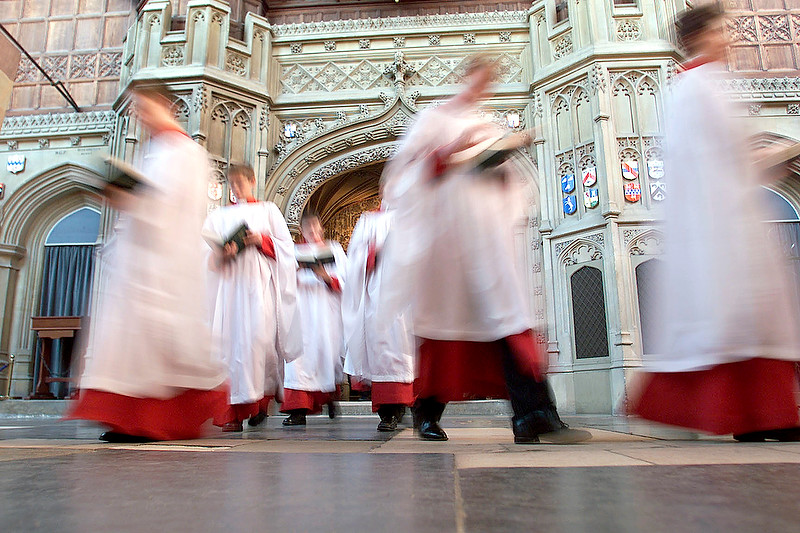
Folio photo #10: Eton College Choir, March 2004

©Neil Turner/TSL, March 2004

©Neil Turner/TSL, March 2004

Choristers leaving the College Chapel after early morning prayers at Eton College, Berkshire. The famous public school is offering junior music scholarships in an attempt to attract bright and musically gifted boys to the school. The blur was used in this case to anonymise the pupils. The camera was sat on the ground, propped up with a the lens hood because I didn’t have a tripod and wanted the motion blur. The lens was a Canon 16-35 f2.8L and the camera was an EOS1D.

The BPPA and The Leveson Inquiry

I have been involved in writing, amending and publishing a second submission on behalf of The British Press Photographers’ Association to the Leveson Inquiry into  the culture, practice & ethics of the press in the United Kingdom. It has been a huge task and the work of propagating it using social media has now begun.

Lord Justice Leveson’s inquiry was founded to look into the phone hacking scandal that brought about the closure of The News of The World and other unsavoury practices in play within the UK news media. In the first week of evidence it turned into a “photographer bashing” event and The BPPA had to respond on behalf of the thousands of perfectly well behaved and law abiding news photographers out there. Lots of countries have a problem with rogue paparazzi or “stalkerazzi” as they have been memorably named by one UK academic.

If you are a lover of great news photography, please follow @TheBPPA on Twitter like The BPPA on Facebook and read The BPPA blog here on WordPress. The industry is at a crossroads and we need our friends and colleagues to help us get where we need to go.

Chicken or egg? Workflow or mess…

Which came first… the Chicken or the egg, digital imaging or workflow?

One of the rather brilliant side effects of teaching is that you had to look very long and hard at your own practice to make sure that it will stand up to the examination of younger and more eager minds. I have taught workflow on and off for a few years now and I have come to the conclusion that all photographers should get theirs checked every once in a while to make sure that they haven’t fallen into the bad habits trap.

It doesn’t take much time and going through what you do and why you do it with an experienced teacher of these things is a great idea. I have also discovered how useful having a go at a proper edit of someone else’s pictures can be. Photographers are rarely their own best editors and it is a brilliant exercise to do an edit of a job where you give no attention to including pictures just because were hard to take or to pictures that you really like but don’t help tell the story. Captioning should also be part of that exercise because we all make assumptions when we do our IPTC that a disinterested party wouldn’t make. All in all, I thoroughly recommend these exercises to you.

In a rather tongue-in-cheek reference to the Alcoholics Anonymous “Twelve Step Plan” to beat addiction, I developed the photographers 12 step plan to get a good, dependable and repeatable workflow. It doesn’t matter that you can cut twelve steps down to seven or eight if you need to work fast and it really doesn’t matter that step twelve was “relax and put your feet up” anyway. What actually matters is that you have a tried and tested way of getting your valuable pictures from the camera to the client and back them up without making silly mistakes that cost you time, image quality and (worst of all) money.

For years I have been “quoting” the Hippocratic oath that Doctors and other medical folks take when they take up their calling. I have put “quoting” in inverted commas because it turns out that the phrase I have always used isn’t part of the oath at all – it’s just a line from a film!

Anyway I’ve been saying this; “First, do no harm”. It works for medicine and it certainly works for photographer workflows because the idea is that you never damage the original file – always working on a copy. Of course, with Jpegs that have had anything more than very light compression applied that means that you have already sacrificed some quality – but I don’t want to go down the whole RAW Vs Jpeg road again.

At some point in the future I will publish an updated version of the photographer’s 12 step plan with a step-by-step explanation of how my own workflow works but for now I wanted to just outline it. Remember that this can be edited down so that you have fewer steps if needs be:

  1. INGEST/IMPORT – get the images and any supporting files from the camera into the computer. Applications designed to ingest or import files look inside folders and sub-­folders on the memory card in a way that you might not be able to do by simply copying files from the card yourself. It’s important to note that this is one of the easier steps to cut out if you are in a real hurry.
  2. FIRST EDIT – make an initial selection of the images that you are interested in. At this stage you can dispense with very badly exposed frames, pictures where the focus has been missed, where important people have their eyes closed or pictures that are just not very good.
  3. COPY – move a copy of the selected images to a new folder.
  4. RENAME – give the selected pictures a new name. Some clients will have a formula that they want you to follow but otherwise try using a simple word identifier, followed by a six‐digit date and then a sequence number. All good software has the ability to batch rename and sequentially number files. A set of portraits of Tony Blair shot on the 3rd of April 2011 might be blair-­110403-­001 through to blair-­110403-­204. The exact formula that you pick isn’t as important as having one that works for you. The filenames that the camera assigns are not good enough and not unique enough for professional use.
  5. CAPTION – using the IPTC metadata fields to add information about what is in the picture, when and where it was taken and by whom it was taken. This is the best way to insure that your pictures can be found again – all image archiving and storage systems work with metadata.
  6. SECOND EDIT – narrowing the selection of images down to those that will make it into the final edit or the selection that will be delivered to the client.
  7. CONVERT – taking the RAW images from the final edit, making adjustment to colour, exposure, brightness, contrast etc using a RAW converter and then saving the toned images to the required file format.
  8. RETOUCH – opening the images into Adobe Photoshop or a similar application to remove dust spots, make subtle (but ethical) changes that cannot be made in the RAW converter, which, these days, are very few.
  9. SAVE – the final stage before sending to the client is to save the edit in the format that the client requires either JPEG or TIFF are most likely.
  10. DELIVER – most images these days are delivered using the internet. FTP is the most efficient but you may also be asked to email pictures, create web galleries, upload to third party viewing sites or simply burn everything to a disc and put them in the post.
  11. ARCHIVE – make sure that you back up copies of everything that you may need again. External hard drives, cloud storage systems and op?cal discs are the most common options. Multiple back ups are the best way to avoid losing your images due to the ageing of materials or the failure of drives.
  12. RELAX – that’s the end of the process!

Folio photo #09: Bournemouth grave digger, October 2008

©Neil Turner. October 2008

Dave Miller has been working for the cemetries service in Bournemouth since leaving school. These days he even lives in a house inside one of the local graveyards. Photographed at dusk in Bournemouth’s North Cemetry for The Guardian. They were running a whole series of pictures of people who do slightly unusual jobs and they times this particular feature to run at halloween.

This frame features four separate flash units – one of which is down inside the grave (which was otherwise empty). Dusk is my favourite time of year for shooting pictures and this particular sunset was very colourful. If you’d like to know even more about this picture, go to this technique page

Folio photo #08: Peter Snow, London, May 2004

©Neil Turner/TSL, May 2004

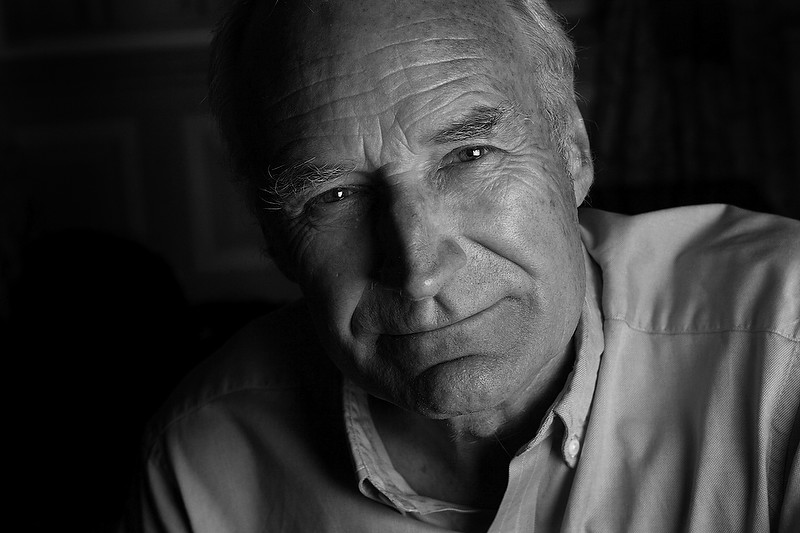
Peter Snow, BBC sephologist, journalist and newsreader photographed after an interview at a central London hotel for a “My Best Teacher” feature for the TES Magazine.

He had a book and a TV series with his historian son at the time and the interview was one of a long series that he had already done that day. The room was cramped and poorly lit and so I used a medium sized soft box very close to him to keep as much light off of the background as possible. One picture editor that I worked with used to call this very tight crop the “egg cup” because it was as if someone had flattened the top just like one.

Folio photo #06: 10 Downing Street, November 2001.

©Neil Turner/TSL November 2001

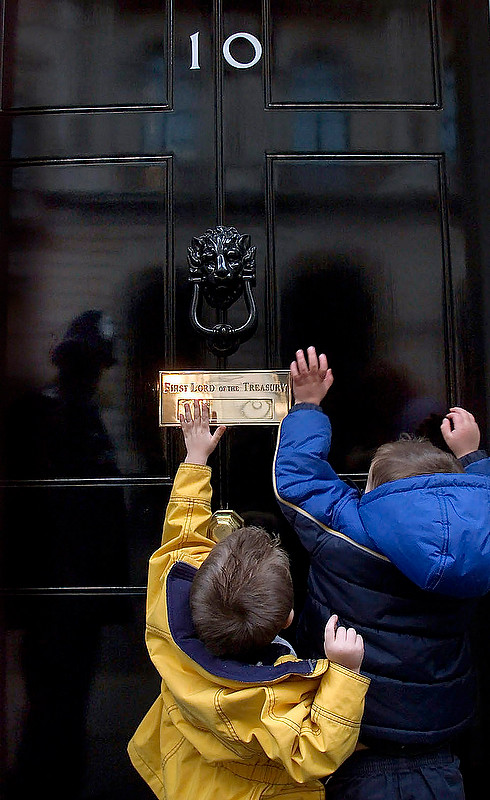
Children from a Leicestershire nursery school try to hand in their petition against closure to No.10 Downing Street.

This was a very ordinary story about yet another petition being handed in at No.10 which became extraordinary when the Police Officer on duty allowed the two children to try to knock on the door and then stood back and laughed as they kept trying.

It was a very cute moment on a day where the world’s media were not watching and the reflection of the officer in the shiny black door makes this a favourite picture of mine. They never reached the door knocker and so the officer eventually helped them out by knocking it for them.

Folio photo #05: CEO portrait with tungsten light, August 2006

©Neil Turner/TSL, August 2006

In 2006 Ian Smith was the Chief Executive Officer (CEO) of Oracle the software company based in the City of London. This business portrait was actually taken for the Times higher Education Supplement who were running a piece about Oracle’s connections with the education industry. The portrait itself was shot in under two minutes but I had set up with a ‘stand-in’ who posed for some test pictures for fifteen minutes before Mr Smith was available.

The really interesting thing about this portrait is that it was shot with deliberately mixed lighting: tungsten gelled flash on the subject and daylight behind with the camera on a custom white balance which was only concerned with the flash. I use this set of pictures a lot when I am teaching my location lighting seminars.