neil turner

iPad workflow part four

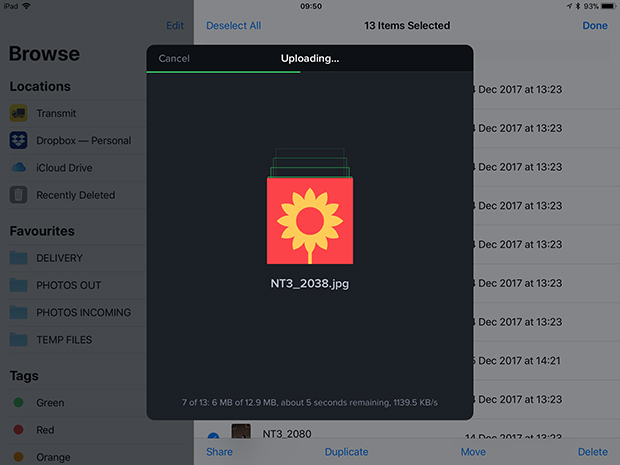
Screen grab from Transmit for iOS on my iPad showing a twelve image upload in action.

There are so many ways that I deliver images to various clients these days that I feel that I’m bound to leave something off of this list. The great news for users of the iPad or iPhone to do quick edits of their work is that every single option that I use on the desktop machine is also available on iOS devices;

  • FTP– I use Transmit on the iPad and iPhone. I also have FTP options inside FSN Pro and Shuttersnitch that can all do a good job but Transmit does it all better.
  • Email – adding large numbers of attachments on the iPad isn’t my favourite way to send pictures but it works.
  • Dropbox – The iOS Dropbox app means that I can easily add files to folders on the cloud service and send links to those folders before, during or after the job. It has a very simple interface and works really well.
  • WeTransfer – I wasn’t very happy when the WeTransfer iOS app went over to functioning as “Boards” – making it a very different user experience from the ever-so-simple desktop version but I’ve got used to it and it works really well.
  • Photoshelter – The professional image sharing platform has a dedicated iOS app which is fairly easy to use and very functional.
  • Third Light – This is a niche Digital Asset Management platform used by two of my corporate clients and the iOS app does its job well.

(more…)

iPad workflow part three

Welcome to the third instalment of my investigation of the best iPad workflow for the kind of work that I do. At the end of part two I came to the conclusion that adding images wirelessly to the iPad (or an iPhone) was the best way to go for me and in the few days since I made that observation I have largely moved towards using FSN Pro to get the pictures to where I need them to be.

I mentioned several times in part two that I wanted, wherever possible, to avoid storing anything in the Apple Photos app without explaining why I am so keen to avoid it. The simple answer is that my normal workflow for several clients involves keeping the original camera filenames intact so that it is possible to follow up at a later date and find them again without having to spend any time looking. Why Apple are so keen to rename every file with the clumsy “img_1234” formula is beyond me. I guess that it must make what goes on inside iOS easier for Apple – if not for photographers. By avoiding the app it is entirely possible to retain the original filename from start to finish. Don’t get me wrong; if I was rushing and getting a couple of quick edits away to a client then I’d happily rename files and/or settle for the img_xxxx option but when there are five, six or more photographs going through then renaming becomes a pain. (more…)

iPad workflow part two

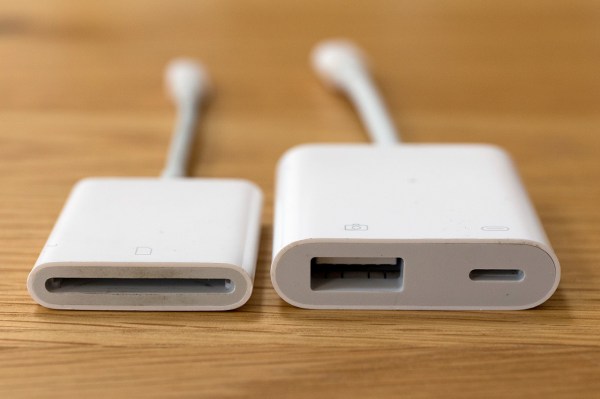
Apple’s Lightning to SD Card and USB3 to Camera adapters

A few weeks ago I promised to keep working on my iPad workflow and keep readers of this blog up-to-date with my thoughts. Lot of other things have got in the way lately but here is the second instalment. I’ve decided to break the whole process down into four parts:

  • Getting the images onto the iPad
  • Toning and captioning them
  • Getting the pictures to where they are needed
  • My conclusions and (hopefully) a settled workflow

The accessories that I’ve used to import images from memory cards onto an iPad for photo editing.Because I’m vaguely logical, I’m going to tackle them in order and so I’m going to outline the ways that I have looked at getting my pictures onto the iPad. Because this is an examination of the possibilities I’m going to consider all of my options and because I’m a Canon user I will tend to lean towards the options for EOS cameras although much of what I’m talking about is not make specific. I have experimented with several ways to get the pictures onto the iPad and I’ve tried all of them as JPEGs and RAW files too: (more…)

Working with Foliobook

The landscape version of the opening page of my Foliobook iPad portfolio.

My previous post about developing a workflow for acquiring, editing and transmitting images using my iPad is still a “work in progress” and that work has been going on alongside another tablet related project. This time it is to get a decent and easily adapted portfolio onto that iPad so that when I need to show pictures I have a pretty good folio with me. I’m sufficiently “old school” to love the look and feel of a printed portfolio and in the past I have used the Foliobook app on an iPad as a back up to the printed work – a way of having a wider selection of pictures just in case the potential client wanted to see more.

I would be the first to admit that I never really used Foliobook to its full potential. A few galleries of randomly sized pictures with graphics ‘straight out of the box’ was about as good as it got. No longer. That £9.99 that I spent all that time ago has now been well and truly exploited! (more…)

Work in progress – an iPad workflow

Whilst I’m not able to be out shooting I have decided to take a serious look at the workflow options using an iPad or even an iPhone and to see whether they really can replace a lightweight laptop in my working life. I have even bought a new iPad Mini 4 (already upgraded to iOS11) because I’m sure that I will be using the tablet for some form of mobile editing. Should you be seeking wisdom and a fully-formed solution I’m prepared to stick a plot-spoiler in here and tell you that it is still very much a ‘work in progress’ and that I don’t have an answer for you. Yet.

My starting point for this is having used my phone as an occasional method of getting pictures away quickly – mostly for clients to be able to use my pictures in their social media and on their websites instead of their own pictures taken with their phones and tablets. If you are prepared to work with JPEG files then this isn’t too tricky, but what if you want to base everything on a RAW workflow? Not so simple?

I know that a lot of photographers have worked out their own workflows for using iPads as their principal location editing devices. I have been trawling blogs and YouTube videos trying to get my head around how and why they have decided to go down this route and the fact that several photographers that I respect and even admire have gone this way means that it has to be a serious option for professional editorial and corporate photography. A lot of the same people, driven by a desire to reduce the weight of their kit, have also gone to mirrorless camera systems.

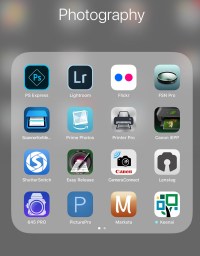
As part of my search I’ve used a LOT of different apps. Amongst others, and in no particular order: Lightroom, FSN Pro, Shuttersnitch, Marksta, PS Express, PicturePro, Transmit, Affinity and the sadly no-longer-supported Photogene4. These range from Lightroom being free with the right Adobe CC subscription to a chunky £49.99 for PicturePro.

So here is what I do know: (more…)

A freelancer’s nightmare

It all started with a twinge in the small of my back. The twinge became an ache and the ache became pain. A visit to the Doctor led to some prescription pain killers and a referral to a back-pain clinic two months into the future. Still working at full speed, I lost the feeling in the soles of my feet and had a few cramps. Every day it got a little worse and then, one Sunday morning, I couldn’t get out of bed without crying with the pain. We made our way to the accident & emergency department of the local hospital where an MRI scan confirmed that I was in trouble. They admitted me to hospital and just over a week later I had two operations on my spine.

The operations were three weeks ago today and, although I’m back home, I’m looking at several months before I can even start to think about working as a photographer. I’m on crutches, my rehabilitation is underway and it’s a struggle.

It has to be one of the worst fears of the freelancer – suffering some sort of injury or illness that keeps you from doing your work which in turn means a loss of income and knowing that your clients will have to look elsewhere for someone to provide the services that you have been providing.

All of this devastating news made me want to compose this rather different blog post and my advice comes in two parts:

  • What to do to avoid and prepare for a sudden, unplanned period of time off
  • What to do if it happens to you

The message has to be that it can happen to you. One minute you are buzzing around going from job to job and regularly burning the midnight oil to get those edits done, your cashflow is looking good and your clients keep coming back and the next you are laid up with an injury. (more…)

Using the Canon W-E1 wifi adapter

When Canon announced the W-E1 wifi adapter for the EOS7D MkII and the EOS5S and 5SR I was decidedly underwhelmed for two reasons;

  • The first was that it was not backwards compatible with the two EOS5D MkIII bodies that I had at the time.
  • The second was that it took away the ability to record to two cards when it was in use.

At the time I couldn’t see any advantage over any of the SD based transmitters from Eye-Fi or Toshiba amongst others. I didn’t buy one and I couldn’t see myself buying one either.

Fast forward ten months and my need to use remote cameras controlled by an iOS devices has grown and I only had one – the wonderfully simple Canon EOS6D. I didn’t want to use either of the EOS5D MkIV bodies as a remote and so I bought the W-E1 adapter to use in my EOS7D MkII. (more…)

Setting up FTP from a Canon EOS 5D MkIV

A couple of weeks ago I spent a couple of days helping to teach other photographers to send pictures direct from their Canon EOS 5D MkIVs. Over the last couple of years I have taught dozens of people how to do this and set up a huge number of cameras; mostly Canons ranging from the 5D MkII, MkIII and MkIV to the various EOS1D series models as well as various Nikon D4, D4S and D5 models. It’s not rocket science but it is something that takes a lot of practice before it becomes part of your toolkit.

I use this technology all of the time myself and it was suggested to me that I might like to try my hand at making an instructional video. I have a face for radio and so my two thumbs are making a welcome return to the media (last seen holding a power tool in the 1985 Argos catalogue). You might like to check out this old blog post about why I need to get pictures away quickly too.

Here’s a link to the 1080p version on Vimeo
There’s also a 720p option on YouTube.

I’m always happy to answer questions and even happier to get feedback. This is my first real attempt at a “how to” video so be gentle with me!

For those who are interested it was all filmed using a Canon EOS7D MkII and a Canon 24-70 f4L IS lens before being edited in Apple iMovie with some help from Apple Keynote.