Neil

One that didn’t make the folio

©Neil Turner/TSL. June 2008, Hertfordshire.

©Neil Turner/TSL. June 2008, Hertfordshire.

When I was putting a massive “long-list” of photographs that I was considering putting into one of the galleries on my portfolio website I looked at this picture and couldn’t make my mind up one way or the other. I was aware that I already had a lot of images from schools – which isn’t surprising when you consider that I have worked in over 3,500 of them in 15 different countries – and that it didn’t add anything to the mix.

I like this picture a lot because it is simple, demonstrates the use of good composition and shallow depth of field as well as reminding me of the kind of work that still makes me want to get out of bed in the morning and go and shoot pictures. These days most of my school based work is shooting for their prospectuses and websites with the odd news story thrown in from time to time but this remains the kind of picture that has a lot of uses and draws the most comment from those who are commissioning the work.

The truth is that almost anyone could take an acceptable picture of primary school children on a scavenger hunt in an enclosed copse. I hope that it also proves that it takes a lot more to produce as good as this on a miserable and rainy day early in the morning when the light is awful and the gear is getting wet. I have kept a few photographs that didn’t make it to one side and I intend to publish a few of them here on the blog with a bit of the background to why I like them along with a bit of the story.


Techie Stuff: Canon EOS1D MkII with a 16-35mm f2.8L lens at 16mm. Canon CR2 RAW file 640 ISO, 1/90th of a second at f2.8 on daylight white balance and converted using Adobe Camera RAW in Photoshop. At the time it would have been ACR in Photoshop CS3 but the file was re-worked using ACR in Photoshop CC.

Portfolio updates – finally!

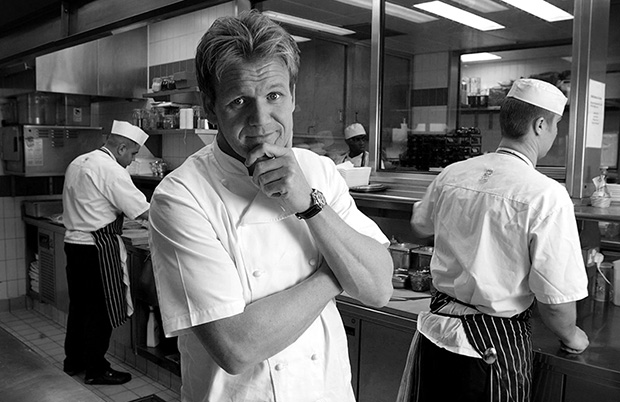
©Neil Turner/TSL February 2003. Gordon Ramsay photographed in his kitchen

©Neil Turner/TSL February 2003. Gordon Ramsay photographed in his kitchen

I have just finished uploading a major update to my website with a refreshed selection of new and old images in the portfolio section and an updated look to the templates pages with links to all of my social media.

I still do most of the work on my site myself and so it takes a lot longer to do but I am very happy with the way that photographs look on my site and I guess that is a major selling point. There will be lots more changes over the next couple of weeks but I’d like to invite you come to the site and have a look at the new portraits selection as well as two new galleries of personal work which will definitely be updated as they are both about continuing passions of mine.

My website is www.dg28.com and if you have any feedback, I’d love to hear it.

My Fujifilm X20 – the final word?

It’s amazing how often a casual conversation or a quick exchange on a Facebook group can spark a train of thought. Earlier today a comment by a friend and fellow photographer about how a photo sharing site had made him look around him and start taking pictures for the love of it again. I agreed whole-heartedly and began to think about uploading a few more pictures here. That moved my train of thought onto the various reviews and updates that I’ve written on this blog and elsewhere about the Fujifilm X20 that has been my almost constant companion for the last 11 months. So what I decided to do was to say a few words to summarise my experiences with this camera and add some pictures shot in the last couple of weeks.

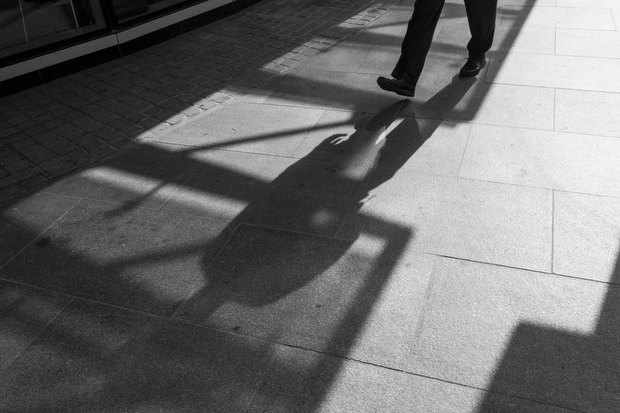
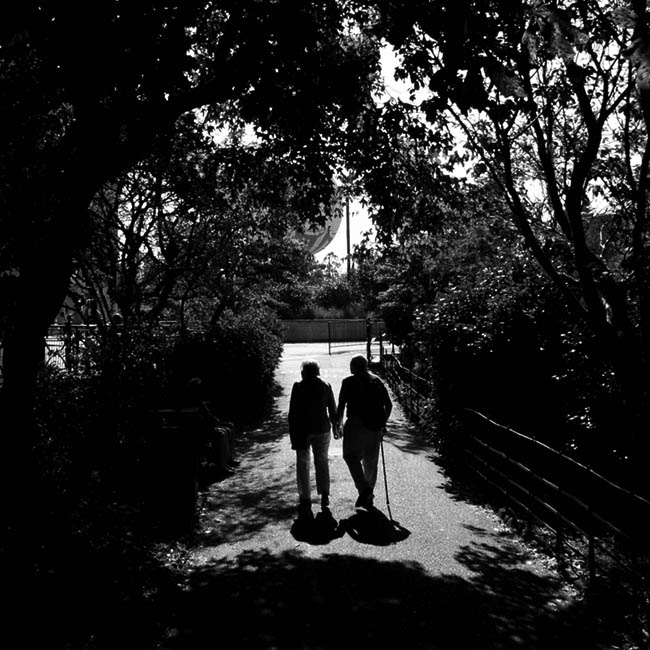
©Neil Turner, March 2014. The photographer's shadow forms part of the scene as an elderly couple walk along South Bank of the River Thames in London.

©Neil Turner, March 2014. The photographer’s shadow forms part of the scene as an elderly couple walk along South Bank of the River Thames in London.

In general, my opinions about this camera have barely changed since I posted the first update back in mid April 2013. Given the product cycle that Fujifilm seems to gallop through the X20 is probably about to be superseded anyway but I thought that I’d offer some advice to make this camera (that I still like very much) better if they want to bring out an X30.

  • The battery life has to improve. Despite doing everything possible to limit power drain I get through two batteries a day when shooting with ordinary SD cards and up to four batteries a day when I’m using one of my Eye-Fi cards. This makes a cool and convenient camera a lot less convenient and pushes up the cost of ownership – even if you go for third party spare batteries.
  • Start-up delay. About once in every third time I switch the camera on it takes three or four seconds to adjust and get the exposure correct. The first picture is often three or more stops over-exposed.
  • Autofocus at the telephoto end of the range. My camera sometimes refuses to auto focus when the lens is zoomed all the way to the 112mm equivalent end of its range.
  • The review time options for looking at images you have just shot are too restrictive. There are no options between 1.5 seconds and zoom (unlimited).
  • The built-in flash isn’t compatible with the lens hood – you get shadows and so to use that function you need to remove the hood.
  • The video isn’t great – but I didn’t buy this camera to shoot video.

On top of all of that it would be great if the focal range went from 24-120, the camera had two SD slots and if there were lens correction options for Adobe Camera RAW because at the 28mm end there is the slightest barrel distortion.

This is a great camera and I love using it. I am seriously tempted by the X100S too. Having borrowed one for an extended period, I would very much like to own one. Fujifilm have done a great job with their X-series cameras and they should be very proud of the effect that their cameras have had on a lot of very old and very picky professionals (like me) who all grin like idiots when using the kit. So now, without further ado, here are a few more recent X20 images for you…

So there you go Fujifilm… bring on the X30…

The term photographer is no longer enough

Just under two years ago I wrote about the definition of the word ‘photographer’ and about how everyone is one these days. I have become more and more interested in the definition and I have come up with the following question:

Can you use the word ‘photographer’ in isolation any more?

What I’m asking there is whether there is anyone out there whose work, hobby or pastime is sufficiently vague that you can just say photographer? I’m probably not the best example but I have my permission to talk about me so here goes; I use a combination of editorial, corporate, press, documentary, portrait, features, PR and commercial in front of the word photographer depending on what I’m shooting, who I’m talking to and where I am. I also use photojournalist from time to time but never ‘just’ photographer without qualifying it.

This got me thinking a bit further. When I teach photography I often compare it to driving. I talk about when you first got behind the wheel of a car and had to think hard about which pedal was which and where the gears were and how some of this was already there because we had been passengers for the preceding 17 years of our lives and we had probably driven go-karts and played computer driving games. The same goes for becoming a photographer. Handling the camera takes a lot of thought at first but it becomes second nature after a while and 99% of us had already been in pictures, used a simple point and shoot as well as doing drawings and getting the basics of composition.

This lead to the thought about the similarities between the word photographer and the word driver. Rarely do you hear ‘driver’ without something more specific in front of it – bus driver, lorry driver, train driver or racing driver amongst many others. I have to wonder whether this is just a natural human need for more information or a desire to stick people and what they do into convenient boxes. I am certain that there are a lot of photographers out there who would rail against being pegged as one kind of photographer and I’m equally certain that there are probably an equal number who would delight in being thought of as completely specialised. Of course there is a group in the middle like me whose descriptor changes on a daily or even hourly basis.

I find it quite amusing when I come across photographers who latch on to genres of photography that either make no sense or that are deliberately elitist or confusing to anyone other than the ‘in-crowd’. I have mentioned my dislike of ‘wedding photojournalism’ before. It is perfectly descriptive but it makes no sense. Wedding photographers are hired by the family or the couple getting married and, no matter what style they shoot in, they are not in any real way acting as journalists using photographs. What they are is wedding photographers using a photojournalistic style. It’s too late to reign it back though. Language is a dynamic and moveable thing and the word photojournalism has already become something different in this context.

When I was first thinking about how I was going to write this post I had just shot a whole series of photographs at a large secondary school where there was a rule that the academic staff were “teachers first and subject specialists second” which meant that nobody working there was a Geography Teacher or a History Teacher or even an English Teacher but were instead a Teacher of Geography or a Teacher of History or a Teacher of English. I spent a while trying to see if I could make that idea work for photography – the idea that we were photographers first and specialists second. Who would prefer to be called a “Photographer of Fashion” or a “Photographer of Sports”? Those work but “Photographer of Portraits” and “Photographer of Corporate (stuff)” don’t really do it for me.

At a dinner party recently I was asked by someone that I’d never met before the obvious “so what do you do?” question. I answered “Editorial & Corporate Photographer” and got a blank look back. The gentleman was an intelligent chap and a local government official but he had to ask me to dissect what an editorial and corporate photographer was. By the end of the conversation I realised that it would have been easier to say “self-employed photographer” and give him the option of digging deeper – so that’s my new tactic at dinner parties.

That incident, the thoughts about teachers and drivers and my general confusion about explaining who I am and what I do have left me pretty much back at the start of this mildly philosophical blog: Each and every time you need to define yourself as a photographer you need to select the appropriate descriptors and adjectives for that particular context. There doesn’t appear to be a solution to this problem that I can see.

I need to go and prepare for tomorrow’s session where, if I were to use my driving analogy, I’m going to be the driving instructor. I suspect that the comparison between photography and driving has many miles to run…

Eye-Fi card workflow

eye-fi_cards When I was rounding up 2013 I mentioned that I had a lot of success using an Eye-Fi card to wirelessly transmit pictures from my cameras (Canon EOS5D MkIII and Fujifilm X20) to either my iPhone, iPad or laptop where I can do a quick edit and caption before sending them to clients. Inevitably I got a couple of emails using the “ask me anything” feature of this blog asking me to describe my workflow. It is similar between an EOS5D MkIII and the Fujifilm X20 except that the former has twin card slots (one CF compact flash and one SD secure digital) whereas the latter only has the SD slot. I like to shoot RAW which means that in the X20 I have to do an in-camera RAW conversion to create a Jpeg to send out. I have two cards (shown left) – an Eye-Fi branded 8Gb Pro X2 and a Sandisk branded 4Gb one. In practice, they both do much the same job but the orange Eye-Fi one has more options should you want to work differently. Without further ado, here is how it all works on the Canon…

Getting the the settings on the card, your camera and your phone/tablet/computer right is the key to getting everything working well:

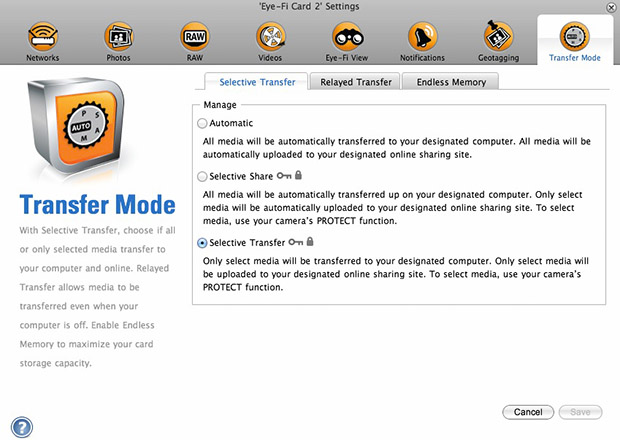
  1. Setting up the Eye-Fi card. When you get the card it should come with an SD card reader and by far the best way to set things up is to use that reader to load the card into a computer. There are lots of options that will appear once you have loaded the supplied “Eye-Fi Centre” application. This workflow is all about working in what the manufacturer calls “direct mode”. I choose to only transfer the files I want to my iPhone and so on the card I have selected “Selective Transfer” via the Eye-Fi Centre application. This means that only images that I have protected in the camera menu get transferred. On the Canon I have assigned the “rate” button to protect images for speed. It is also useful to add a couple of wifi networks and to define which file formats to transfer using the application whilst the card is in the computer because it isn’t possible to alter some settings once the card is in the camera. This whole process takes a few minutes and if you get it right, the whole thing test a lot easier from here on in.eye-fi_screenshot
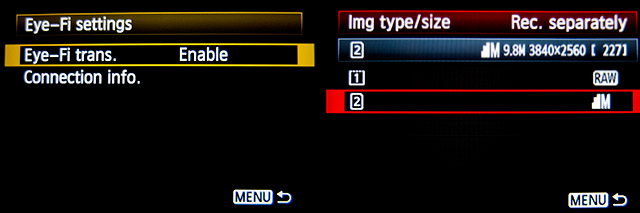
  2. Setting up the camera. In the EOS5D MkIII menu there are three things that I’d recommend you do. The first is to assign the “rate” button to protect selected images. The second is to get the camera to write RAW files to the CF card and medium size Jpegs to the SD (Eye-Fi) card. Finally, you need to enable Eye-Fi transfer from the camera menu. This way you can use the review function with card 2 (the SD slot) and then every time you protect an image written to the Eye-Fi card it will automatically look to transfer that file to the device you have nominated.
    eos_screens
  3. The receiving device. I use an iPhone and an iPad and the whole process is eventually controlled by the free app that Eye-Fi make available through the Apple App Store. There are equally useful apps available for Android powered devices and the functionality is pretty much identical. Apart from loading the app the only other thing you have to do is to download and authorise a small change to your wifi settings on your phone which simply installs the settings for the direct mode to work. Once you launch the app you get an opening window which then gives way to the gallery window which in turn tells you what is happening about transfers. Below you can see the card paring screen and the gallery screen.eye_fi_phone
  4. Editing your pictures. Once you have the image on your phone or tablet you can then use the apps of your choice to edit and caption your image before shifting them on. My personal favourite is Photogene4 which has some good image options such as clarity, contrast, saturation, straighten, crop, sharpen and the ability to add IPTC captions – including defaults such as the EXIF time day and date as well as any pre-loaded captions and copyright information. I find that it’s a good idea to write some generic captions using Apple’s Notes app and then copy and paste them into Photogene4. The app also has the option to upload to a wide range of sharing sites as well as to email and ransomer images to FTP servers – making it really useful for work.photogene
    From shooting a frame to having it uploaded to my own FTP server normally takes twenty to thirty seconds if there is a good phone signal and the various uses that I’ve found for this rapid upload range from offering images to people I’ve photographed to providing almost instant pictures for corporate clients to use for their Facebook, Instagram and Twitter feeds at events. This is a very versatile piece of kit and I haven’t even come close to describing everything that it can do. I like the way that this workflow actually does flow and I love the effect that it has had on a couple of clients who really appreciate what it offers them. My first Eye-Fi card was £24.99 including VAT – possibly the best investment that I’ve ever made!

Revisiting my workflow

It is impossible to work digitally without having some sort of workflow. Most are a bit better than adequate, some are good and some are blindingly awful. I think that it is important to have a look at the way you do things every once in a while to make sure that yours is as good as it can be and achieves the four goals of being;

  • Efficient in terms of both time and memory
  • Repeatable so that the purely functional bits can be done almost on auto-pilot
  • Non destructive so that you don’t lose valuable RAW files or save changes to Jpegs shot in camera
  • Able to be short-cut for jobs where time is even more of an issue

I’ve written about my workflow before and I often teach workshops based on the “photographer’s twelve step plan” – a process with 12 distinct stages from camera to client including backing up and having a coffee! In this blog post I’m simply going to go through my basic workflow with a few hints and tips as I go. I normally use Photo Mechanic to import, sort, caption, rename and export my files and Adobe Photoshop CC to convert RAW (Canon CR2 most of the time) files into the required format. The whole process is colour-managed and I do as much as I can in-camera to save myself time when editing. I work on either a MacBook Pro, a MacBook Air or a Mac Mini depending on where I am and what the job is. Anyway, let’s kick off…
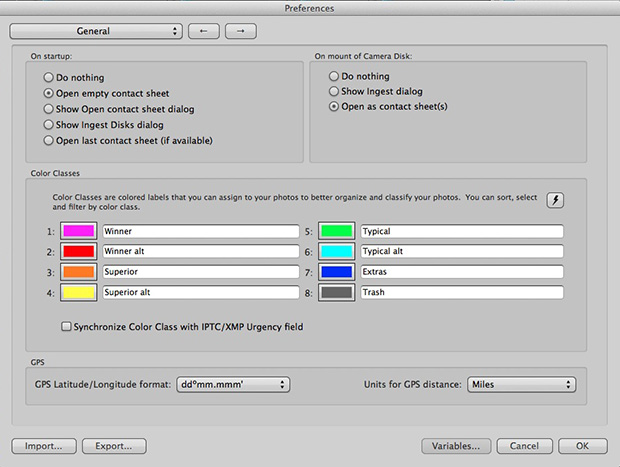
pm_preferences

Before I insert a card into the card reader I launch Photo Mechanic. This screen grab shows the “general” preferences for the application including what I want to happen when I load a memory card. I have checked the box “Open as contact sheet(s)” which means that as soon as the card goes in I see the images in a standard window. In the past I often used “show ingest dialogue” but I have found that ingesting every single frame doesn’t suit me and that it slows the whole process down drastically. Typically I only want between 25% and 35% of the images and so I go through them using the “tag” function (cmd T on a Mac or ctrl T on a PC) to identify those that I’m interested in or those which have unique content.

Once I’ve been through that card and tagged the images I want I use the “copy” function (cmd Y on the Mac and ctrl Y on a PC) and copy those tagged files to a new folder. I use a simple formula YYMMDD-jobname-RAW for those files and then repeat this process with every card used on that job. Photo Mechanic can be set to automatically open and update a new contact sheet with the copied files. I always eject the cards without deleting anything just in case there are problems during the process and put those cards to one side to be deleted later.

pm-preview

pm_contact_sheet

The preview and contact sheet windows are extremely easy ways to look at and select pictures. Once I have my first edit done I apply a generic caption using the Photo mechanic stationery pad (cmd I or ctrl I). At this point I’d like to mention two enormously useful features of Photo Mechanic (available on some other applications too).

The first is variables. These are simple ways of automatically adding information to your captions or filenames. Many are derived from the EXIF data applied in the camera. These include time, day and date as well as other shooting data. Some cameras allow you to set copyright information in the camera and others apply GPS location data too. Other variables might include camera serial numbers, original filenames as well as items that you can add yourself from pre-loaded drop-down menus. I have every county in the United Kingdom loaded as well as a large number of towns and cities and I also have some specific locations where I work regularly pre-loaded. By choosing a specific city from one drop-down menu you can use variables to add it to relevant other areas of the IPTC automatically. You can see some examples of variables in the caption below.

pm_stationery_pad

My main caption starts with {city}, {state}. {iptcday0} {iptcmonthname} {iptcyear4} which will then become something like Brighton, East Sussex. 12 December 2013 if I have all of the right information ready to go. If there are more details to add to the generic caption it is easy enough to do those in batches using the stationery pad.

Variables can also be used in the renaming of files.

pm-rename

This requires you to add the IPTC caption before you rename the files because using the {headline} variable automatically includes the headline you have used in the filename. I find this to be very useful and very good for saving time. In practice Photo Mechanic will sequentially rename 100 files in about ten seconds using this method.

The other really useful feature that Photo Mechanic has for helping with captions is code replacement. The idea is similar to variables except you create your won shortcuts. Sports photographers use this a lot and it saves a great deal of time. Imagine a football (that’s soccer to everyone in north America) team with 22 squad players – many of whom have unfamiliar and difficult to spell names. Using code replacement you can preload a text file with the teams before the game using shirt numbers. The England team, for example, would have numbers from EN01 to EN22 with the names of the players set against those numbers. Using code replacement you would type \EN08\ and the software would immediately recognise that as 8 Wayne Rooney or whatever you have set it to say. I use it for political figures so \dcam\ automatically becomes The Rt Hon David Cameron MP. I can add a second part to that if I so wish \pm\ would add Prime Minister.

I also use code replacement for shooting musicians and bands. It is really easy to create a text file with the names of all of the band members and then use the shortcuts to add the relevant people to each frame. You select the shortcuts yourself and the long versions yourself. Once you get the hang of code replacement, it becomes a central part of your workflow.

At this point I’ll often do a second tighter edit. I’ll keep all of the RAW files that I have copied over from the cards but only convert and send the best to the client. For some news jobs that is only 6-10 images and for other editorial assignments anything between a dozen and thirty. Some of the corporate jobs I shoot end up with a couple of hundred files and working on those proves the efficiency of this workflow because it is scaleable and repeatable.

Once I have my RAW (CR2 or RAF) images selected, captioned and renamed it is time to highlight them all and open them in Adobe Camera RAW in Adobe Photoshop. There are a number of great RAW conversion options out there and whether you use Photoshop, Lightroom, Aperture, Capture One or any of the others you need to make sure that the one you use doesn’t strip your carefully added caption information during the RAW conversion process.

acr-window

This is what the Adobe camera RAW window looks like. You can select a number of images from the strip down the left hand side and apply the same adjustments to all of them. I don’t want to run a complete ACR tutorial here but I would like to mention the straighten, sharpen, crop and lens correction adjustments as well worth learning. Of course those are secondary to the basic correction options such as colour temperature and tint, exposure, contrast, highlight and shadows etc. I find that I rarely need to open an image into Photoshop itself simply because all of the things that I’d normally do to a picture can be done right here in Camera Raw. Every few frames I will highlight those that have been corrected but not yet saved and save them. A decent computer with enough RAM will happily save the adjusted RAW files into whatever format you choose in the background whilst you continue to work on the rest. Once I have hit the “save” button on the last files I then click on “done”. Most of the time I am saving files at their default size as high quality Jpegs with some sharpening into the same folder as the RAW files. Photo Mechanic then updates the folder to show the RAW and Jpeg files together (you can separate them if you wish to) with a thumbnail from the newly saved Jpeg.

One of the best improvements between Adobe Camera RAW in Photoshop CS6 and Photoshop CC is an improved and expanded “save” dialogue window. You now have the option to set a target size, target amount of compression and apply a set degree of sharpening. With modern cameras producing pictures of over 60 megabytes and many of my clients wanting their photographs to be considerably smaller than that I am now using the target size more and more. My default setting is 4800 pixels along the longest side and with a maximum compressed file of 3200 kilobytes.

acr-save

Once I have my images all saved I return to Photo Mechanic and copy the Jpeg files into a new folder ready to send to the client. More and more that folder is a Dropbox one and I will give the link to the images to the client. For news jobs I can simply FTP the images (having saved them at a smaller size) and for some commercial clients that means burning the pictures to a DVD or CD. However they are delivered, the images are correctly sized, nicely prepared from the RAW files and properly captioned and renamed. All of this is done quickly and efficiently without damaging any originals.

When the urgency of the edit is over, I copy the files to a RAID drive in my office, to a portable drive that lives in my car and to a third drive which is away from my office ‘just in case’. I might then treat myself to a coffee…

Back on the beach

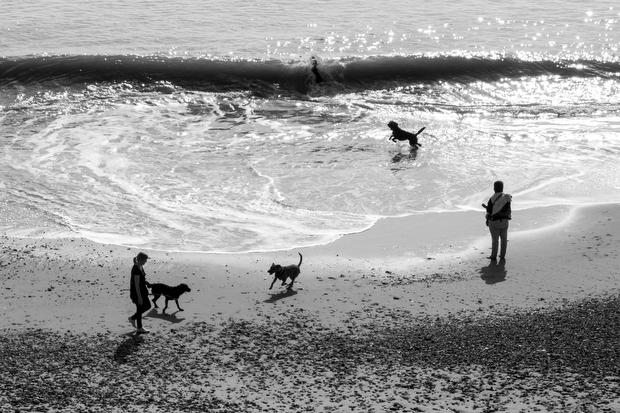
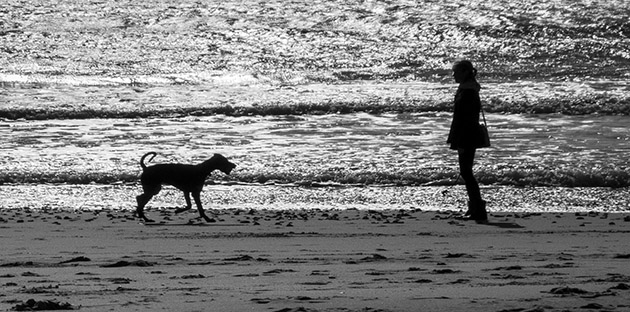
In another “just because” moment I thought that I’d post this picture I grabbed on the beach today. I’ve blogged about my near obsession with shooting dogs on the beach and today I was at my favourite part of my favourite beach when the combination of light and subject matter came together meaning that all I had to do was compose, wait and click.

©Neil Turner, October 2013. Bournemouth

©Neil Turner, October 2013. Bournemouth

I actually saw this picture as a mono image too and anyone who has been following this blog will know that this was a major step forward for me in my quest to be able to truly see in monochrome when I want to. To add the final piece to the jigsaw of this image, I love a good silhouette too.

The picture was shot on a Fujifilm X20 at the fullest extent of its 112mm equivalent zoom and it shows a dog with its owner having something of a difference of opinion about what should happen with a ball. You don’t expect to get such beautiful weather in late October – especially less than 36 hours after a massive storm had lashed this part of the English coast. Within a minute or two of shooting this picture I did a RAW conversion in the camera before using an Eye-Fi card to transfer it to my iPhone 5S where I used the Photogene 4 app to optimise and caption the image before uploading it to EyeEm (in colour). The version shown here is the more considered black and white image converted in Photoshop CC on my Mac at home.

Monochrome and me

I was asked by a good client of mine to have a look at a set of black and white photographs that a new photographer had shot for them. They quite liked them but couldn’t see why they weren’t enthused by them because they fitted the brief. My answer was that if they had been in colour they’d have been seriously dull but that in black and white they were elevated to mediocre because black and white has impact. I tried to find the words to say that for monochrome to work really well you needed the light to contribute to the finished picture in an even more compelling way than it has to for good colour images. That wasn’t to say that great light doesn’t make for great colour pictures – far from it – but by this time my explanation was foundering and I was starting to sound less than coherent. At that point I cut my losses and simply said “to sum up, the light isn’t very interesting and without colour all you have is light and shade”. Wow… nailed it right at the end!

I drove home thinking about my own long and chequered history with shooting black and white: from the first frames I ever shot as a young kid through the exercises in light and shade, focal length and depth of field and movement that I did as a student to the hundreds of rolls I shot as an emerging professional photographer I have never been all that pleased with my ability to consistently shoot interesting black and white images  – ones that I didn’t privately think would look better in colour.

  • Photographic heresy alert – I’m a better photographer in colour and so are 90% of my fellow photographers.
  • Photographic jealousy alert – I envy those who can just “see” in terms of black, white and shades of grey
  • Photographic honesty alert – I have decided to do something about it, 27+ years into my professional career

Thinking long and hard about monochrome and me has been an interesting experience. I’ve found myself examining the way images look through the viewfinder and asking whether the picture I’m about to take relies on colour, light, both or neither. Don’t get me wrong, I don’t have a clipboard or a mental checklist to hand – it’s just a momentary thought that pops up a few times on each job. I’m definitely making progress. I’ve been shooting a lot of events during the Bournemouth Arts By The Sea Festival over the last three weeks and on more than one occasion I knew that some of my pictures were destined to be monochrome, better in black and white.

©Neil Turner, September 2013. The vesry first frame I shot during the Bournemouth Arts By The Sea Festival 2013 - a man reading the programme a few minutes before it all started.

©Neil Turner, September 2013. The very first frame I shot during the Bournemouth Arts By The Sea Festival 2013 – a man reading the programme a few minutes before it all started.

©Neil Turner, October 2013. Mark Kermode playing bass with The Dodge Brothers at the Bournemouth Arts By The Sea Festival

©Neil Turner, October 2013. Mark Kermode playing bass with The Dodge Brothers at the Bournemouth Arts By The Sea Festival

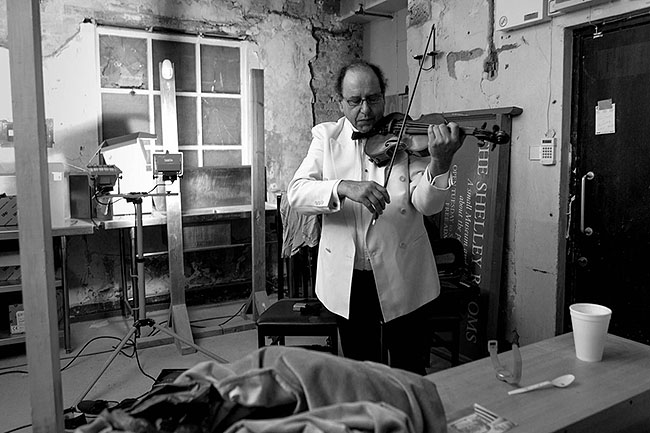
©Neil Turner, September 2013. Violinist Jack Maguire warming up in his makeshift dressing room

©Neil Turner, September 2013. Violinist Jack Maguire warming up in his makeshift dressing room

It isn’t that I’ve never shot anything good in black and white it’s just that most of the time I wasn’t ‘seeing’ without colour. The market for black and white isn’t huge right now anyway and I haven’t had to develop myself in that direction. The funny thing is that it is the explosion of social media and sites like Instagram and EyeEm that have made me experiment more and, more importantly, it has been my love affair with the Fujifilm X20 that has pushed me into shooting pictures that bear little resemblance to the suff that I do for work – often monochrome fits that bill rather well.

Monochrome and Me… it’s been a long and weird relationship. I like to think that it is maturing nicely and that it is now entering something of a golden era. There’s still no money in it but that isn’t really the point.

©Neil Turner, September 2013. Pensioners walking out of the Pleasure Gardens, Bournemouth

©Neil Turner, September 2013. Pensioners walking out of the Pleasure Gardens, Bournemouth