workflow

If you haven’t seen Pixelrights – check it out…

pixelrigts_ss
When friends of yours start up a new business it is natural to wish it well and then forget all about it until you see those friends again. That’s kind of what happened with me and Pixelrights. Shaun Curry, one of the founders is an old mate and when he rang me out of the blue a while ago to explain his new business venture I was happy for him and offered my support as I would with pretty much any of my friends.

A few months later Shaun got back to me and asked to ‘borrow’ a couple of pictures for their development website. Always happy to help I sent him a couple of JPEGs and signed up for email, Facebook and Twitter feeds to remain abreast of their progress. Once more, nothing much happened and then Pixelrights offered to develop the new website for The BPPA and suddenly there I was having an in depth explanation of their ideas complete with a demonstration of what their idea could offer.

Passive supporter becomes active advocate over the course of one afternoon. I love the idea and I really love the fact that these are people doing what they are doing for money AND for the love of what they might achieve. So what is Pixelrights? Here’s a cut and paste from their own concept page:

Working in photography and the visual arts ourselves, we wanted to create something that we would not only use, but also enjoy using. We saw the need for simple, functional yet sophisticated portfolios which would serve photographer’s interests and needs, in an honest manner with no marketing trickery.

Pixelrights provides a secure, simple, classically-presented choice of website designs, backed up with state-of-the-art technology, all for a single price. There are no hidden charges to remove branding, no divisive price plans and no subscription fee traps.

What it actually provides is a portfolio of the simplest form with good image protection and the option to allow carefully controlled and monitored sharing. There are quite a few design options and there will probably be more by the time the current “Beta” phase is completed. I have three folios on my pages and I have a range of hidden galleries which are invite only so that clients can go and look at images that I have uploaded for them to Dropbox making use of a cool and simple interface. The whole point of a beta phase is to gather opinions of users and make things even better and that’s exactly what is happening.

I’d strongly recommend that you go and check out Pixelrights for yourself and the best way to get there is via my members page. Make sure that you look at the features and the pricing because this is a good idea from good people with an awful lot of backing from working photographers.

Tonality – the black & white conversion app

Screen grab from Tonality 1.1.1

Screen grab from Tonality 1.1.1

I was intrigued by a recommendation that I read from a colleague for Tonality. I rarely go outside Adobe Camera RAW these days, even for black and white conversions, but I was tempted to have a go at something new and so I went to the Apple App Store and bought it. After a few attempts at fiddling with it I dismissed it as a very interesting application that I would master one day when I had the time. A few days ago I was asked by a client to convert a lot of images supplied to them as colour Jpegs into mono Jpegs with a slight tone over them. In the past I would have gone straight back to the RAW files and started again but I had the idea of giving Tonality a go.

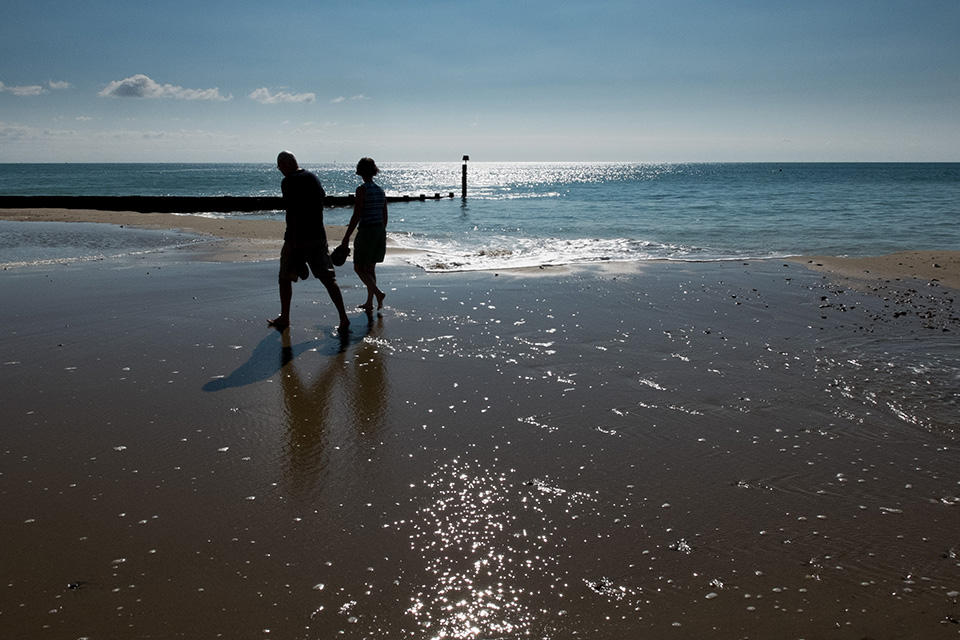
Like so many of the corporate jobs I shoot, the client would rather I didn’t show they images on my personal blog and so I grabbed some other interesting pictures from my ongoing personal work and applied the same sort of presets to them. It had taken me less than five minutes to become familiar with the sliders and controls and probably another five minutes to create the ideal and very subtle split toning effect that the client had been asking for. The two versions of a photograph taken on the beach at Bournemouth that you see below were a quick test for this blog post. The colour image is a Jpeg converted from a Fujifilm X20 RAW file in Adobe Camera RAW and the black and white version underneath was converted into black and white using the “adaptive exposure” auto setting in Tonality from that Jpeg.

©Neil Turner, September 2014. Bournemouth.

©Neil Turner, September 2014. Bournemouth.

©Neil Turner, September 2014. Bournemouth.

©Neil Turner, September 2014. Bournemouth.


I don’t know what you think but I am really impressed by the job that the auto has done and, whilst I could fiddle and get it even better, I am more than happy with it. I can hear you saying that this is also easy to do in Photoshop (and quite a few other apps and plug-ins) but the point is that it was done in Tonality and it was really easy. The application is capable of a lot of good stuff as well as a lot more completely over the top special effects that I wouldn’t touch with a barge pole.

When I get more time, I’m going to get right under the skin of this application. Until then, it will be used on my personal project work. If a client asks for toned mono images again, I will definitely look as using Tonality for that too.

The UK price is £13.99 – which is a little bit dearer than most Apps that I would buy just to have a play. It’s a very simple app that achieves its goals.

Working other people’s files

From time to time I work with teams of photographers as an editor. It’s part of the ‘rich portfolio’ of roles that I have these days. 80% or more of my work is still shooting pictures and that’s great but for the other 20% of my working life I enjoy doing some other photo-related stuff. I’ve written before about teaching and running workshops and one of the workshops that I do is about sharpening up your workflow. For me the best way to help others improve their workflow is to sit down with them and go through how they work and then refine what they already do rather than to throw everything out and start again.

Editing other people’s work is a whole other matter. Imagine being in a deadline driven environment where you have several photographers all shooting RAW and where you have to occasionally grab their memory cards and do some of their edits for them. On one recent job I handled CR2 files from Canon EOS1DX, EOS5D MkIII and EOS5D MkII cameras as well as NEF files from Nikon D4S, D4, D3S, D3, D800 and D610 cameras over a two week period. Some of the cameras were left on factory settings and others had been set up by their owners to the point where none of the settings were left unchanged. RAW files obviously allow you to return the completely unchanged state but I am a believer in the idea that you trust the photographer to have made changes on purpose and to respect those changes wherever possible as you come to edit their files.

The old, old Nikon Vs Canon debate morphs into a NEF Vs CR2 debate. As a long-time Canon user myself I thought that I’d find the CR2 files far easier to work with and I was ready to spend far more time getting NEFs right. The biggest shock was that it was entirely the other way around. Files from the latest Nikon cameras can be easy to work with. Really easy. I realised after only a few hours that, as long as the in-camera settings weren’t eccentric, NEFs from the D4, D4S and the D800 were not only easy to work with (requiring relatively few adjustments) but that the quality was uniformly high. In contrast the imported CR2 files from all of the Canons looked a lot less impressive as they landed in Photo Mechanic and then in Adobe Camera RAW. On average, it took more clicks of the mouse (maybe 50% more) to get the CR2s looking as good as they should.

Needless to say, this was quite a revelation. It isn’t as if I hadn’t worked with other people’s files before but this was the first time that I had seen the results of so many different people’s work from so many different cameras in such a compressed space in time. The pictures were all coming from top class photographers and the end results were largely indistinguishable from one another but the route to get there was certainly different. There are way too many variables to draw any definitive conclusions from this but I can say the following;

  • Any reservations that I might have once had about the NEF file format are long gone
  • The results achievable from both NEF and CR2 full-frame cameras are on a par with one another
  • The idea that the colours rendered by Nikons and Canons are inherently different has a small toehold in fact
  • The RAW files from all of these cameras are incredibly versatile and you can get the desired results from either
  • Given the choice I’d go with the NEF from a well set up D4S as the file from other people I’d prefer to work with

Since that event where I worked all of these files side-by-side I have also had a long play with NEFs from a D810 and a D800E. They both require careful handling because of the absence of a low-pass filter over the chip. This gives greater apparent sharpness and a degree of “pop” that is hard to describe but on the flip side it is much easier to mis-handle the files and introduce noise and chromatic problems when using a RAW converter or Photoshop itself. To get around this you find yourself constantly switching between degrees of magnification on the screen to check the effects of any changes to contract, highlight, shadow, saturation or sharpening that you apply. I found this to have a significant slowing effect on my workflow but I also loved the quality of the images produced. The D810 is a camera that I’d happily add to my list of those producing desirable files to work with.

So, NEF Vs CR2? Out of the blocks the NEF files that I’ve worked with over the last few months streak into an early lead but the CR2s catch up along the back straight and they are neck and neck at the line. For now…

Stage two of the RAW argument

Ten years ago the “should I shoot RAW” debate was raging between all kinds of photographers. Slowly but surely the vast majority of us have moved over to the RAW camp having realised that you not only get better quality but can also save time if your workflow is good enough. OK, so you only get 300 images on an 8 gigabyte memory card but memory is cheap these days and all of the other advantages of shooting Jpegs (unless you are offloading files straight from the camera) have disappeared one by one.

So that’s stage one of the RAW argument out of the way.

Screen Shot 2014-07-17 at 10.39.41

So far, stage two has appeared to be a whole series of “my RAW converter is better than your RAW converter” arguments played out endlessly across social media. Proponents of one system produce videos that “prove” their point of view on YouTube and then those links are posted on Facebook, Twitter and who knows where else until someone else comes along and “proves” the exact opposite. Some of them even try to sell you expensive and largely pointless plug-ins and actions that promise to take your photos and turn them into masterpieces in a single click of a mouse. Is it all valid comment or is it just hot air? I’m leaning heavily towards the latter.

Buying, learning and mastering every single quality converter would be expensive and mind-numbingly dull. Few of us use any software to anywhere near its limitations and some of the claims for various applications go largely un-challenged.

A few years ago people started to talk excitedly about Capture One as being a gold-standard amongst RAW converters. It would have been around version four that I persuaded my then employer to send me on a one-day course to learn the basics of the workflow. It was good. It was actually very good and I bought it (well, my employer bought it for me). Fast forward to version six and I wrote glowingly about it on this blog saying that I really liked it despite a few flaws. Well of course that was comparing it to Adobe Camera RAW in Photoshop as it was then. Both applications have upgraded since then as have Aperture, Canon DPP, Nikon Capture, DxO and a range of others. Each of them has advantages and disadvantages that skilled users of each piece of software can and will point out to anyone who will listen. Those skilled users can also get the very best out of a file using their chosen converter. Capture One Pro 7 is wonderful but so is Adobe Camera RAW 8.5 and so are lots of others.

And here is the first major conclusion – as long as you have the RAW file, you can endlessly go back and rework those files with every new and supposedly better application you try or buy. For the record, I don’t believe that there is anything other than a tiny difference between the best of them when it comes to image quality if the person doing the work has the skills and experience to get the most out of the files or the software. The old “this application is better at recovering highlights” comment that you hear so often is not only subjective but largely a thing of the past. As new versions come out and as new cameras present us with new variants of the RAW formats then differences do become apparent. A quick upgrade to your chosen application and those problems go away again.

Here is the second major conclusion and the principle piece of wisdom that I want to impart: It’s all about the interface. How you interact with the application has a greater influence on what you get out at the end than anything else. Application A does a great job but so do Applications B and C. If you are comfortable with B then choose B and don’t stress about the relative merits of A or C until such times as B can no longer deliver the quality from your files that you and your market demand. Changing workflow and moving to a new RAW converter is painful, time-consuming and throughly depressing (unless you are a geek like me). My heart goes out to the Aperture users who are facing having to do just that at some time in the near future now that Apple have announced that they are stopping development.

As software gets better, the files we process through that software gets better and our workflows become more embedded someone, somewhere will do some “testing” and pronounce that they have the perfect workflow and Groundhog Day will be upon us for the zillionth time.

I sometimes end up working with other photographers files and the difference between types of files is astounding. Canon 5D MkII files next to Canon 5D MkIII files require different handling but the difference between those and something like a Nikon D4S file is astonishing. Not better, not worse but different. Different to the point that you have to tweak your technique. Using the exact same software, workflow computer and set-up the two types of file react very differently to the same treatment. This, ladies and gentlemen, is my third and final major conclusion from stage two of the RAW debate – Not all RAW files are created equally so don’t assume that you can work the same way with them.

Bring on stage three please.

Eye-Fi card workflow

eye-fi_cards When I was rounding up 2013 I mentioned that I had a lot of success using an Eye-Fi card to wirelessly transmit pictures from my cameras (Canon EOS5D MkIII and Fujifilm X20) to either my iPhone, iPad or laptop where I can do a quick edit and caption before sending them to clients. Inevitably I got a couple of emails using the “ask me anything” feature of this blog asking me to describe my workflow. It is similar between an EOS5D MkIII and the Fujifilm X20 except that the former has twin card slots (one CF compact flash and one SD secure digital) whereas the latter only has the SD slot. I like to shoot RAW which means that in the X20 I have to do an in-camera RAW conversion to create a Jpeg to send out. I have two cards (shown left) – an Eye-Fi branded 8Gb Pro X2 and a Sandisk branded 4Gb one. In practice, they both do much the same job but the orange Eye-Fi one has more options should you want to work differently. Without further ado, here is how it all works on the Canon…

Getting the the settings on the card, your camera and your phone/tablet/computer right is the key to getting everything working well:

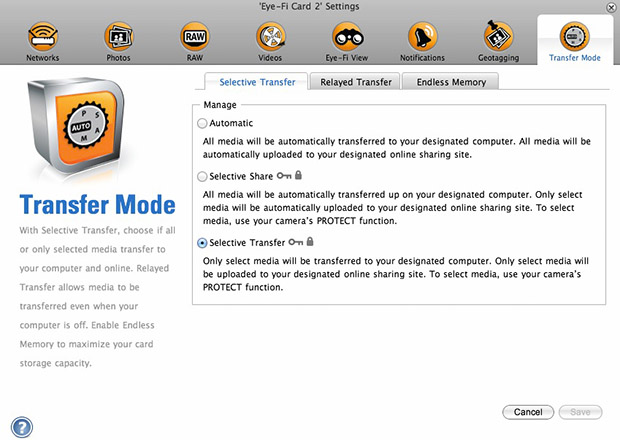
  1. Setting up the Eye-Fi card. When you get the card it should come with an SD card reader and by far the best way to set things up is to use that reader to load the card into a computer. There are lots of options that will appear once you have loaded the supplied “Eye-Fi Centre” application. This workflow is all about working in what the manufacturer calls “direct mode”. I choose to only transfer the files I want to my iPhone and so on the card I have selected “Selective Transfer” via the Eye-Fi Centre application. This means that only images that I have protected in the camera menu get transferred. On the Canon I have assigned the “rate” button to protect images for speed. It is also useful to add a couple of wifi networks and to define which file formats to transfer using the application whilst the card is in the computer because it isn’t possible to alter some settings once the card is in the camera. This whole process takes a few minutes and if you get it right, the whole thing test a lot easier from here on in.eye-fi_screenshot
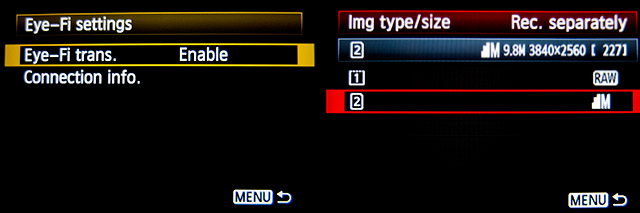
  2. Setting up the camera. In the EOS5D MkIII menu there are three things that I’d recommend you do. The first is to assign the “rate” button to protect selected images. The second is to get the camera to write RAW files to the CF card and medium size Jpegs to the SD (Eye-Fi) card. Finally, you need to enable Eye-Fi transfer from the camera menu. This way you can use the review function with card 2 (the SD slot) and then every time you protect an image written to the Eye-Fi card it will automatically look to transfer that file to the device you have nominated.
    eos_screens
  3. The receiving device. I use an iPhone and an iPad and the whole process is eventually controlled by the free app that Eye-Fi make available through the Apple App Store. There are equally useful apps available for Android powered devices and the functionality is pretty much identical. Apart from loading the app the only other thing you have to do is to download and authorise a small change to your wifi settings on your phone which simply installs the settings for the direct mode to work. Once you launch the app you get an opening window which then gives way to the gallery window which in turn tells you what is happening about transfers. Below you can see the card paring screen and the gallery screen.eye_fi_phone
  4. Editing your pictures. Once you have the image on your phone or tablet you can then use the apps of your choice to edit and caption your image before shifting them on. My personal favourite is Photogene4 which has some good image options such as clarity, contrast, saturation, straighten, crop, sharpen and the ability to add IPTC captions – including defaults such as the EXIF time day and date as well as any pre-loaded captions and copyright information. I find that it’s a good idea to write some generic captions using Apple’s Notes app and then copy and paste them into Photogene4. The app also has the option to upload to a wide range of sharing sites as well as to email and ransomer images to FTP servers – making it really useful for work.photogene
    From shooting a frame to having it uploaded to my own FTP server normally takes twenty to thirty seconds if there is a good phone signal and the various uses that I’ve found for this rapid upload range from offering images to people I’ve photographed to providing almost instant pictures for corporate clients to use for their Facebook, Instagram and Twitter feeds at events. This is a very versatile piece of kit and I haven’t even come close to describing everything that it can do. I like the way that this workflow actually does flow and I love the effect that it has had on a couple of clients who really appreciate what it offers them. My first Eye-Fi card was £24.99 including VAT – possibly the best investment that I’ve ever made!

Revisiting my workflow

It is impossible to work digitally without having some sort of workflow. Most are a bit better than adequate, some are good and some are blindingly awful. I think that it is important to have a look at the way you do things every once in a while to make sure that yours is as good as it can be and achieves the four goals of being;

  • Efficient in terms of both time and memory
  • Repeatable so that the purely functional bits can be done almost on auto-pilot
  • Non destructive so that you don’t lose valuable RAW files or save changes to Jpegs shot in camera
  • Able to be short-cut for jobs where time is even more of an issue

I’ve written about my workflow before and I often teach workshops based on the “photographer’s twelve step plan” – a process with 12 distinct stages from camera to client including backing up and having a coffee! In this blog post I’m simply going to go through my basic workflow with a few hints and tips as I go. I normally use Photo Mechanic to import, sort, caption, rename and export my files and Adobe Photoshop CC to convert RAW (Canon CR2 most of the time) files into the required format. The whole process is colour-managed and I do as much as I can in-camera to save myself time when editing. I work on either a MacBook Pro, a MacBook Air or a Mac Mini depending on where I am and what the job is. Anyway, let’s kick off…
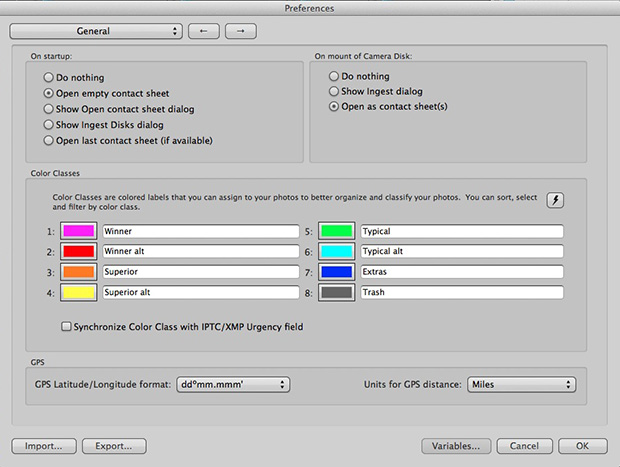
pm_preferences

Before I insert a card into the card reader I launch Photo Mechanic. This screen grab shows the “general” preferences for the application including what I want to happen when I load a memory card. I have checked the box “Open as contact sheet(s)” which means that as soon as the card goes in I see the images in a standard window. In the past I often used “show ingest dialogue” but I have found that ingesting every single frame doesn’t suit me and that it slows the whole process down drastically. Typically I only want between 25% and 35% of the images and so I go through them using the “tag” function (cmd T on a Mac or ctrl T on a PC) to identify those that I’m interested in or those which have unique content.

Once I’ve been through that card and tagged the images I want I use the “copy” function (cmd Y on the Mac and ctrl Y on a PC) and copy those tagged files to a new folder. I use a simple formula YYMMDD-jobname-RAW for those files and then repeat this process with every card used on that job. Photo Mechanic can be set to automatically open and update a new contact sheet with the copied files. I always eject the cards without deleting anything just in case there are problems during the process and put those cards to one side to be deleted later.

pm-preview

pm_contact_sheet

The preview and contact sheet windows are extremely easy ways to look at and select pictures. Once I have my first edit done I apply a generic caption using the Photo mechanic stationery pad (cmd I or ctrl I). At this point I’d like to mention two enormously useful features of Photo Mechanic (available on some other applications too).

The first is variables. These are simple ways of automatically adding information to your captions or filenames. Many are derived from the EXIF data applied in the camera. These include time, day and date as well as other shooting data. Some cameras allow you to set copyright information in the camera and others apply GPS location data too. Other variables might include camera serial numbers, original filenames as well as items that you can add yourself from pre-loaded drop-down menus. I have every county in the United Kingdom loaded as well as a large number of towns and cities and I also have some specific locations where I work regularly pre-loaded. By choosing a specific city from one drop-down menu you can use variables to add it to relevant other areas of the IPTC automatically. You can see some examples of variables in the caption below.

pm_stationery_pad

My main caption starts with {city}, {state}. {iptcday0} {iptcmonthname} {iptcyear4} which will then become something like Brighton, East Sussex. 12 December 2013 if I have all of the right information ready to go. If there are more details to add to the generic caption it is easy enough to do those in batches using the stationery pad.

Variables can also be used in the renaming of files.

pm-rename

This requires you to add the IPTC caption before you rename the files because using the {headline} variable automatically includes the headline you have used in the filename. I find this to be very useful and very good for saving time. In practice Photo Mechanic will sequentially rename 100 files in about ten seconds using this method.

The other really useful feature that Photo Mechanic has for helping with captions is code replacement. The idea is similar to variables except you create your won shortcuts. Sports photographers use this a lot and it saves a great deal of time. Imagine a football (that’s soccer to everyone in north America) team with 22 squad players – many of whom have unfamiliar and difficult to spell names. Using code replacement you can preload a text file with the teams before the game using shirt numbers. The England team, for example, would have numbers from EN01 to EN22 with the names of the players set against those numbers. Using code replacement you would type \EN08\ and the software would immediately recognise that as 8 Wayne Rooney or whatever you have set it to say. I use it for political figures so \dcam\ automatically becomes The Rt Hon David Cameron MP. I can add a second part to that if I so wish \pm\ would add Prime Minister.

I also use code replacement for shooting musicians and bands. It is really easy to create a text file with the names of all of the band members and then use the shortcuts to add the relevant people to each frame. You select the shortcuts yourself and the long versions yourself. Once you get the hang of code replacement, it becomes a central part of your workflow.

At this point I’ll often do a second tighter edit. I’ll keep all of the RAW files that I have copied over from the cards but only convert and send the best to the client. For some news jobs that is only 6-10 images and for other editorial assignments anything between a dozen and thirty. Some of the corporate jobs I shoot end up with a couple of hundred files and working on those proves the efficiency of this workflow because it is scaleable and repeatable.

Once I have my RAW (CR2 or RAF) images selected, captioned and renamed it is time to highlight them all and open them in Adobe Camera RAW in Adobe Photoshop. There are a number of great RAW conversion options out there and whether you use Photoshop, Lightroom, Aperture, Capture One or any of the others you need to make sure that the one you use doesn’t strip your carefully added caption information during the RAW conversion process.

acr-window

This is what the Adobe camera RAW window looks like. You can select a number of images from the strip down the left hand side and apply the same adjustments to all of them. I don’t want to run a complete ACR tutorial here but I would like to mention the straighten, sharpen, crop and lens correction adjustments as well worth learning. Of course those are secondary to the basic correction options such as colour temperature and tint, exposure, contrast, highlight and shadows etc. I find that I rarely need to open an image into Photoshop itself simply because all of the things that I’d normally do to a picture can be done right here in Camera Raw. Every few frames I will highlight those that have been corrected but not yet saved and save them. A decent computer with enough RAM will happily save the adjusted RAW files into whatever format you choose in the background whilst you continue to work on the rest. Once I have hit the “save” button on the last files I then click on “done”. Most of the time I am saving files at their default size as high quality Jpegs with some sharpening into the same folder as the RAW files. Photo Mechanic then updates the folder to show the RAW and Jpeg files together (you can separate them if you wish to) with a thumbnail from the newly saved Jpeg.

One of the best improvements between Adobe Camera RAW in Photoshop CS6 and Photoshop CC is an improved and expanded “save” dialogue window. You now have the option to set a target size, target amount of compression and apply a set degree of sharpening. With modern cameras producing pictures of over 60 megabytes and many of my clients wanting their photographs to be considerably smaller than that I am now using the target size more and more. My default setting is 4800 pixels along the longest side and with a maximum compressed file of 3200 kilobytes.

acr-save

Once I have my images all saved I return to Photo Mechanic and copy the Jpeg files into a new folder ready to send to the client. More and more that folder is a Dropbox one and I will give the link to the images to the client. For news jobs I can simply FTP the images (having saved them at a smaller size) and for some commercial clients that means burning the pictures to a DVD or CD. However they are delivered, the images are correctly sized, nicely prepared from the RAW files and properly captioned and renamed. All of this is done quickly and efficiently without damaging any originals.

When the urgency of the edit is over, I copy the files to a RAID drive in my office, to a portable drive that lives in my car and to a third drive which is away from my office ‘just in case’. I might then treat myself to a coffee…
The constant software update dilemma

Back in the day we used to occasionally try out new chemicals and different printing papers. We used to experiment with new film stock when it hit the market and, on the whole, it was a welcome distraction from the day-to-day work. In the digital era we have to get new cameras a bit more often and we need to keep our IT current but the biggest battle and the largest dilemma is software. Because I teach a bit and because I am a complete anorak** I always have a look at new software packages as they become available.

menu_bar_screen_grab

Keeping up to date is not cheap. Upgrades are often necessary – especially when none of the software companies make their RAW converters backwards compatible when new cameras and new lenses hit the market. The move by Adobe towards the monthly or annual subscription model is very interesting and brings into very sharp focus the real cost of having the latest software. I have written before about making the business case for buying new gear and the same formula should apply to upgrading software. Every time I talk or write about these kinds of financial decisions, the same piece of music pops into my head… Bruce Springsteen’s song “Cautious Man” where there is a line that says:

“When something caught his eye he’d measure his need
And then very carefully he’d proceed”

lightroom_5_screen_shot

This week, to misquote the wonderful Fast Show, “I are mostly been playing with Lightroom”. To be more precise I have been looking at the new Lightroom 5 beta that Adobe have made available. This comes against a background of having experimented with pretty much every version of Lightroom since it hit the shops back in 2007 and found that I wasn’t entirely sold on the application despite seeing why others love it so much. And that is a huge part of the software conundrum – there are lots of options that achieve pretty much the same end result but get there via very different routes. If, like me, you shoot RAW pictures you need to have a way of editing, captioning, renaming, converting, saving, delivering and archiving your work. This can be achieved using a single application or you can use three , four or five different ones – it really doesn’t matter as long as your workflow is repeatable, flexible, efficient and accurate.

I will write a lot more about Lightroom 5 when I have really used it properly but I have to say that it seems a lot quicker than the previous version and the interface for Adobe RAW Converter is even closer to to the version that I use in Photoshop CS6 than ever – making using Lightroom a lot easier for me. I have also realised that Adobe’s efforts to create a programme for photographers to edit their work in are bearing fruit. The time has definitely arrived when I could easily do without Photoshop altogether and run pretty much everything from Lightroom. Of course that doesn’t mean that I want to… yet.

Getting colour right on four year old cameras

Back in June 2010 I wrote a blog post about getting the colours to match on multiple Canon digital camera bodies. Ever since then I have tried really hard to keep my cameras synchronised for colour and contrast as well as making sure that the clocks are set to identical times. What has become obvious to me is that as cameras get older they shift their colour balance and the shift seems to accelerate a little. What has also become obvious is that the clocks built into Canon digital cameras get out of synchronisation far too quickly.

WB Shift on a Canon EOS5D MkII

WB Shift on a Canon EOS5D MkII

Getting the clocks the same is a simple task: you can either do it in the menu on the camera or synchronise the clocks when the camera is connected to the computer using the very useful Canon EOS Utility software – a simple task that I find needs to be checked at least every four to five weeks. When I did the synch’ this morning two Canon EOS5D MkII bodies were nearly fifteen seconds different.

Moving on to the much trickier question of colour, I suggest that you read the old post before actually doing any work. Getting two cameras to match takes a while and getting three to match when one of them has a significantly different chip is even harder. This time I was simply wanting to get my two four-year-old 5D MkIIs to give me the same colour rendition as each other. I had started to notice that one required quite a bit more magenta removal than the other and so I put my 70-200 lens on a tripod, connected the first camera (which was giving me some fairly magenta images) to the laptop and mounted the body onto the lens. I built myself a little still life with a cereal box and a grey card, lit it with a reliable flash on manual power output and shot a frame or two.

My makeshift test target

My makeshift test target

The images were brought into Canon’s EOS Utility software and then into Photo Mechanic on the calibrated computer screen and I had a look. The grey was noticeable pink and the whites on the cardboard box were too and so I adjusted the white balance shift (WB SHIFT/BKT in the camera menu) from it’s starting position of B1,G2 to B1,G4 and took a couple more frames. Much better, but still a tiny bit magenta. I shifted it to B1, G5 and took another picture and the grey was finally grey and the white was finally as white as it could get.

That was the first camera sorted. All I had to do was to get the second one to match it. Leaving the lens on the tripod I simply swapped the bodies over,  matched the exposure and fired a couple more frames. This body was on B0, G1 and, after a bit of fiddling, I got the colours to match by eye on B1 G2. Comparing the frames shot on the two cameras showed that one was a tiny amount more contrasty than the other and so I simply adapted the Picture Style “standard” that I habitually use for RAW files to get the contrast between the two cameras to match as well.

All-in-all it took about thirty-five minutes to set the kit up and get the results that I wanted (including synchronising the clocks). On my shoot today everything was the right colour as soon as I dragged it into Adobe Camera RAW from both cameras and I saved myself a fair amount of computer time – which is important because in the editorial markets where I make most of my money nobody pays for the time you spend in front of the screen and adjusting images from two different cameras can take quite a bit of time.

For me, this kind of techie stuff is vital. A lot of people just plough on and shoot without ever calibrating or changing anything but I am sure that thirty-five minutes work once every few weeks will save an enormous amount of time in between and time is, they say, money!