canon

One that didn’t make the folio

©Neil Turner/TSL. June 2008, Hertfordshire.

©Neil Turner/TSL. June 2008, Hertfordshire.

When I was putting a massive “long-list” of photographs that I was considering putting into one of the galleries on my portfolio website I looked at this picture and couldn’t make my mind up one way or the other. I was aware that I already had a lot of images from schools – which isn’t surprising when you consider that I have worked in over 3,500 of them in 15 different countries – and that it didn’t add anything to the mix.

I like this picture a lot because it is simple, demonstrates the use of good composition and shallow depth of field as well as reminding me of the kind of work that still makes me want to get out of bed in the morning and go and shoot pictures. These days most of my school based work is shooting for their prospectuses and websites with the odd news story thrown in from time to time but this remains the kind of picture that has a lot of uses and draws the most comment from those who are commissioning the work.

The truth is that almost anyone could take an acceptable picture of primary school children on a scavenger hunt in an enclosed copse. I hope that it also proves that it takes a lot more to produce as good as this on a miserable and rainy day early in the morning when the light is awful and the gear is getting wet. I have kept a few photographs that didn’t make it to one side and I intend to publish a few of them here on the blog with a bit of the background to why I like them along with a bit of the story.


Techie Stuff: Canon EOS1D MkII with a 16-35mm f2.8L lens at 16mm. Canon CR2 RAW file 640 ISO, 1/90th of a second at f2.8 on daylight white balance and converted using Adobe Camera RAW in Photoshop. At the time it would have been ACR in Photoshop CS3 but the file was re-worked using ACR in Photoshop CC.

A very different kind of photography

©Neil Turner February 2014. Low level Aurora activity over a frozen lake, Inari County, Finland

©Neil Turner February 2014. Low level Aurora activity over a frozen lake, Inari County, Finland

Just a week ago I was standing on a frozen lake in northern Finland with my Wife and a dozen other people watching and waiting for the Aurora Borealis to charm us with its dancing and colours. We were in Finland because it was my fiftieth birthday and my Wife had spoiled me with a trip to see if we could see the Northern Lights. Being an obsessive photographer I wanted to shoot some nice pictures of some amazing skies but it was this frame which shows some light pollution and very low levels of activity that I love the most.

This kind of photography is a million miles away from what I do best and this is the first time that I’ve ever seriously tried to photograph a night sky in this way. It was dark (three hours after sunset) and it was cold and it was magical. As you can see from the image below, we went on to shoot some much prettier Auroras but there’s something about this frame that makes me want to go back and try again.

©Neil Turner February 2014. Medium level Aurora activity near Ivalo, Finland

©Neil Turner February 2014. Medium level Aurora activity near Ivalo, Finland

Techie stuff:  Exposures varying from 10 to 30 seconds at between f2.8 and f4 on 2000 ISO. Canon EOS5D MkIII with a 16-35 f2.8L lens on a Manfrotto 055 tripod

An interesting portrait

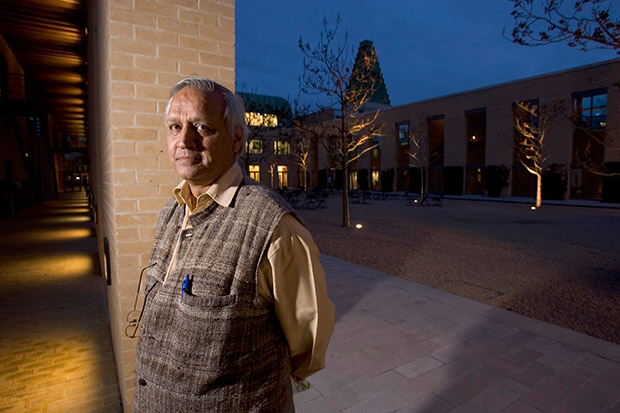
©Neil Turner/TSL. Sanjit Bunker Roy - founder of The Barefoot College in his native Rajasthan in 1984 is also heavily involved in the Global Rainwater Harvesting Organisation. Photographed at the Said Business Centre at Oxford University .

©Neil Turner/TSL. Sanjit Bunker Roy – founder of The Barefoot College in his native Rajasthan in 1984 is also heavily involved in the Global Rainwater Harvesting Organisation. Photographed at the Said Business Centre at Oxford University .

Whilst looking for an image to demonstrate a specific point to a group of NCTJ Photojournalism students I re-discovered this portrait of a charming businessman and philanthropist that I shot back in March 2006 for The Times Higher Education Supplement. The point that I was making was actually about histograms but I wanted to say a little more here about why I liked this picture so much at the time I shot it.

Firstly, he was a really nice man who gave me the time to shoot a small range of images. He was happy to chat, happy to be directed and trusted me to do my job. You would think that the majority of people would react the same way when being photographed by a professional but that is sadly not how it is. I was delighted that, despite being a businessman, he was wearing something a lot more interesting than a grey or navy suit. I got the distinct impression that he had cultivated an image and that he was very happy with it.

My second point is the degree to which I had to mix ambient light, the sky and my own flash. I couldn’t do too much to balance the sky and the lighting around the quadrangle but I had to get the balance between the subject and the ambient just right and I ended up allowing the walkway to the left of the frame go a lot darker than I’d originally intended so that the depth of the blue in the sky was exactly as I’d wanted it. Looking back, I was always keen to see the lighting balance on the screen on the camera and I often shot two versions of a picture with differing balances so that I could choose when looking at it on a decent sized screen in the edit. These days, the screens on cameras are so much better and you get a far better impression of how the photograph will look on the LCD.

My third and final point about this portrait is the way that it applies the old “rule of thirds” in an unusual way. Yes he is almost exactly one third of the way into the frame from the left (classic composition) but his body is facing out of the frame (not classic composition) and everything on the right hand side of the frame isn’t much more than decorative.

I think that the light, the tones and the colours all add up to an interesting and very usable portrait – one that I remember enjoying taking. I also remember the speed with which I had to offload the images over a slightly dodgy GPRS mobile connection. But what about the histogram? The students who were at the lecture would tell you that I spent a lot of time comparing good, bad and ugly histograms and explaining what they all meant before admitting that I rarely, if ever, look at them myself! I know that in certain circles that would be a heretical thing to admit but all photographers have to have some sort of rebellion in them.

Techie stuff: Canon EOS1D MkII, Canon 16-35 f2.8L lens at 16mm, ½ second at f8 on ISO 200 with a Lumedyne Signature series flash with no light modifier. Canon CR2 RAW file converted using Adobe Photoshop.

Eye-Fi card workflow

eye-fi_cards When I was rounding up 2013 I mentioned that I had a lot of success using an Eye-Fi card to wirelessly transmit pictures from my cameras (Canon EOS5D MkIII and Fujifilm X20) to either my iPhone, iPad or laptop where I can do a quick edit and caption before sending them to clients. Inevitably I got a couple of emails using the “ask me anything” feature of this blog asking me to describe my workflow. It is similar between an EOS5D MkIII and the Fujifilm X20 except that the former has twin card slots (one CF compact flash and one SD secure digital) whereas the latter only has the SD slot. I like to shoot RAW which means that in the X20 I have to do an in-camera RAW conversion to create a Jpeg to send out. I have two cards (shown left) – an Eye-Fi branded 8Gb Pro X2 and a Sandisk branded 4Gb one. In practice, they both do much the same job but the orange Eye-Fi one has more options should you want to work differently. Without further ado, here is how it all works on the Canon…

Getting the the settings on the card, your camera and your phone/tablet/computer right is the key to getting everything working well:

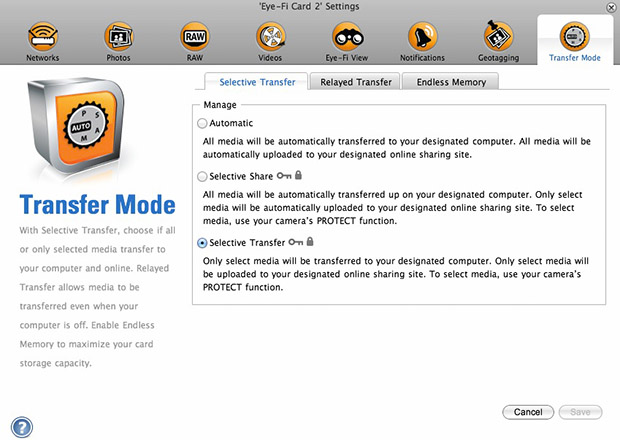
  1. Setting up the Eye-Fi card. When you get the card it should come with an SD card reader and by far the best way to set things up is to use that reader to load the card into a computer. There are lots of options that will appear once you have loaded the supplied “Eye-Fi Centre” application. This workflow is all about working in what the manufacturer calls “direct mode”. I choose to only transfer the files I want to my iPhone and so on the card I have selected “Selective Transfer” via the Eye-Fi Centre application. This means that only images that I have protected in the camera menu get transferred. On the Canon I have assigned the “rate” button to protect images for speed. It is also useful to add a couple of wifi networks and to define which file formats to transfer using the application whilst the card is in the computer because it isn’t possible to alter some settings once the card is in the camera. This whole process takes a few minutes and if you get it right, the whole thing test a lot easier from here on in.eye-fi_screenshot
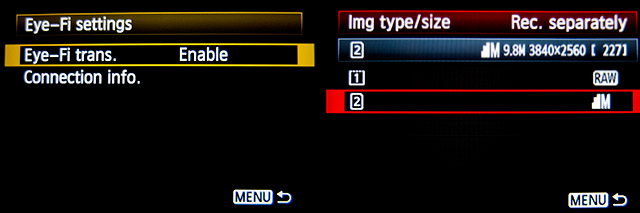
  2. Setting up the camera. In the EOS5D MkIII menu there are three things that I’d recommend you do. The first is to assign the “rate” button to protect selected images. The second is to get the camera to write RAW files to the CF card and medium size Jpegs to the SD (Eye-Fi) card. Finally, you need to enable Eye-Fi transfer from the camera menu. This way you can use the review function with card 2 (the SD slot) and then every time you protect an image written to the Eye-Fi card it will automatically look to transfer that file to the device you have nominated.
    eos_screens
  3. The receiving device. I use an iPhone and an iPad and the whole process is eventually controlled by the free app that Eye-Fi make available through the Apple App Store. There are equally useful apps available for Android powered devices and the functionality is pretty much identical. Apart from loading the app the only other thing you have to do is to download and authorise a small change to your wifi settings on your phone which simply installs the settings for the direct mode to work. Once you launch the app you get an opening window which then gives way to the gallery window which in turn tells you what is happening about transfers. Below you can see the card paring screen and the gallery screen.eye_fi_phone
  4. Editing your pictures. Once you have the image on your phone or tablet you can then use the apps of your choice to edit and caption your image before shifting them on. My personal favourite is Photogene4 which has some good image options such as clarity, contrast, saturation, straighten, crop, sharpen and the ability to add IPTC captions – including defaults such as the EXIF time day and date as well as any pre-loaded captions and copyright information. I find that it’s a good idea to write some generic captions using Apple’s Notes app and then copy and paste them into Photogene4. The app also has the option to upload to a wide range of sharing sites as well as to email and ransomer images to FTP servers – making it really useful for work.photogene
    From shooting a frame to having it uploaded to my own FTP server normally takes twenty to thirty seconds if there is a good phone signal and the various uses that I’ve found for this rapid upload range from offering images to people I’ve photographed to providing almost instant pictures for corporate clients to use for their Facebook, Instagram and Twitter feeds at events. This is a very versatile piece of kit and I haven’t even come close to describing everything that it can do. I like the way that this workflow actually does flow and I love the effect that it has had on a couple of clients who really appreciate what it offers them. My first Eye-Fi card was £24.99 including VAT – possibly the best investment that I’ve ever made!

Revisiting my workflow

It is impossible to work digitally without having some sort of workflow. Most are a bit better than adequate, some are good and some are blindingly awful. I think that it is important to have a look at the way you do things every once in a while to make sure that yours is as good as it can be and achieves the four goals of being;

  • Efficient in terms of both time and memory
  • Repeatable so that the purely functional bits can be done almost on auto-pilot
  • Non destructive so that you don’t lose valuable RAW files or save changes to Jpegs shot in camera
  • Able to be short-cut for jobs where time is even more of an issue

I’ve written about my workflow before and I often teach workshops based on the “photographer’s twelve step plan” – a process with 12 distinct stages from camera to client including backing up and having a coffee! In this blog post I’m simply going to go through my basic workflow with a few hints and tips as I go. I normally use Photo Mechanic to import, sort, caption, rename and export my files and Adobe Photoshop CC to convert RAW (Canon CR2 most of the time) files into the required format. The whole process is colour-managed and I do as much as I can in-camera to save myself time when editing. I work on either a MacBook Pro, a MacBook Air or a Mac Mini depending on where I am and what the job is. Anyway, let’s kick off…
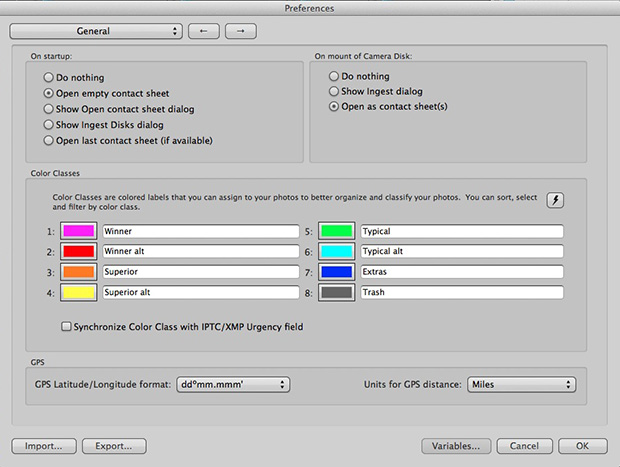
pm_preferences

Before I insert a card into the card reader I launch Photo Mechanic. This screen grab shows the “general” preferences for the application including what I want to happen when I load a memory card. I have checked the box “Open as contact sheet(s)” which means that as soon as the card goes in I see the images in a standard window. In the past I often used “show ingest dialogue” but I have found that ingesting every single frame doesn’t suit me and that it slows the whole process down drastically. Typically I only want between 25% and 35% of the images and so I go through them using the “tag” function (cmd T on a Mac or ctrl T on a PC) to identify those that I’m interested in or those which have unique content.

Once I’ve been through that card and tagged the images I want I use the “copy” function (cmd Y on the Mac and ctrl Y on a PC) and copy those tagged files to a new folder. I use a simple formula YYMMDD-jobname-RAW for those files and then repeat this process with every card used on that job. Photo Mechanic can be set to automatically open and update a new contact sheet with the copied files. I always eject the cards without deleting anything just in case there are problems during the process and put those cards to one side to be deleted later.

pm-preview

pm_contact_sheet

The preview and contact sheet windows are extremely easy ways to look at and select pictures. Once I have my first edit done I apply a generic caption using the Photo mechanic stationery pad (cmd I or ctrl I). At this point I’d like to mention two enormously useful features of Photo Mechanic (available on some other applications too).

The first is variables. These are simple ways of automatically adding information to your captions or filenames. Many are derived from the EXIF data applied in the camera. These include time, day and date as well as other shooting data. Some cameras allow you to set copyright information in the camera and others apply GPS location data too. Other variables might include camera serial numbers, original filenames as well as items that you can add yourself from pre-loaded drop-down menus. I have every county in the United Kingdom loaded as well as a large number of towns and cities and I also have some specific locations where I work regularly pre-loaded. By choosing a specific city from one drop-down menu you can use variables to add it to relevant other areas of the IPTC automatically. You can see some examples of variables in the caption below.

pm_stationery_pad

My main caption starts with {city}, {state}. {iptcday0} {iptcmonthname} {iptcyear4} which will then become something like Brighton, East Sussex. 12 December 2013 if I have all of the right information ready to go. If there are more details to add to the generic caption it is easy enough to do those in batches using the stationery pad.

Variables can also be used in the renaming of files.

pm-rename

This requires you to add the IPTC caption before you rename the files because using the {headline} variable automatically includes the headline you have used in the filename. I find this to be very useful and very good for saving time. In practice Photo Mechanic will sequentially rename 100 files in about ten seconds using this method.

The other really useful feature that Photo Mechanic has for helping with captions is code replacement. The idea is similar to variables except you create your won shortcuts. Sports photographers use this a lot and it saves a great deal of time. Imagine a football (that’s soccer to everyone in north America) team with 22 squad players – many of whom have unfamiliar and difficult to spell names. Using code replacement you can preload a text file with the teams before the game using shirt numbers. The England team, for example, would have numbers from EN01 to EN22 with the names of the players set against those numbers. Using code replacement you would type \EN08\ and the software would immediately recognise that as 8 Wayne Rooney or whatever you have set it to say. I use it for political figures so \dcam\ automatically becomes The Rt Hon David Cameron MP. I can add a second part to that if I so wish \pm\ would add Prime Minister.

I also use code replacement for shooting musicians and bands. It is really easy to create a text file with the names of all of the band members and then use the shortcuts to add the relevant people to each frame. You select the shortcuts yourself and the long versions yourself. Once you get the hang of code replacement, it becomes a central part of your workflow.

At this point I’ll often do a second tighter edit. I’ll keep all of the RAW files that I have copied over from the cards but only convert and send the best to the client. For some news jobs that is only 6-10 images and for other editorial assignments anything between a dozen and thirty. Some of the corporate jobs I shoot end up with a couple of hundred files and working on those proves the efficiency of this workflow because it is scaleable and repeatable.

Once I have my RAW (CR2 or RAF) images selected, captioned and renamed it is time to highlight them all and open them in Adobe Camera RAW in Adobe Photoshop. There are a number of great RAW conversion options out there and whether you use Photoshop, Lightroom, Aperture, Capture One or any of the others you need to make sure that the one you use doesn’t strip your carefully added caption information during the RAW conversion process.

acr-window

This is what the Adobe camera RAW window looks like. You can select a number of images from the strip down the left hand side and apply the same adjustments to all of them. I don’t want to run a complete ACR tutorial here but I would like to mention the straighten, sharpen, crop and lens correction adjustments as well worth learning. Of course those are secondary to the basic correction options such as colour temperature and tint, exposure, contrast, highlight and shadows etc. I find that I rarely need to open an image into Photoshop itself simply because all of the things that I’d normally do to a picture can be done right here in Camera Raw. Every few frames I will highlight those that have been corrected but not yet saved and save them. A decent computer with enough RAM will happily save the adjusted RAW files into whatever format you choose in the background whilst you continue to work on the rest. Once I have hit the “save” button on the last files I then click on “done”. Most of the time I am saving files at their default size as high quality Jpegs with some sharpening into the same folder as the RAW files. Photo Mechanic then updates the folder to show the RAW and Jpeg files together (you can separate them if you wish to) with a thumbnail from the newly saved Jpeg.

One of the best improvements between Adobe Camera RAW in Photoshop CS6 and Photoshop CC is an improved and expanded “save” dialogue window. You now have the option to set a target size, target amount of compression and apply a set degree of sharpening. With modern cameras producing pictures of over 60 megabytes and many of my clients wanting their photographs to be considerably smaller than that I am now using the target size more and more. My default setting is 4800 pixels along the longest side and with a maximum compressed file of 3200 kilobytes.

acr-save

Once I have my images all saved I return to Photo Mechanic and copy the Jpeg files into a new folder ready to send to the client. More and more that folder is a Dropbox one and I will give the link to the images to the client. For news jobs I can simply FTP the images (having saved them at a smaller size) and for some commercial clients that means burning the pictures to a DVD or CD. However they are delivered, the images are correctly sized, nicely prepared from the RAW files and properly captioned and renamed. All of this is done quickly and efficiently without damaging any originals.

When the urgency of the edit is over, I copy the files to a RAID drive in my office, to a portable drive that lives in my car and to a third drive which is away from my office ‘just in case’. I might then treat myself to a coffee…

Anyone remember the “old dg28”?

Starting in 1999 I posted over fifty technique samples on my website. These days, hardly a month goes by without a photographer telling me that they read them over and over again and that they learned to not fear using flash by experimenting with some of the ideas that I talked about. Those technique pages used to get some serious traffic!

I’ve been looking back through them in connection with another project that I’m working on and I picked (almost at random) one of the old pieces to post here. It was originally posted in the summer of 2001 and I find it quite interesting that agree with everything I said. I clearly remember the shoot as well; the subject was the same age as me (37 at the time) and he was retraining as a plasterer. I’m now 49 and my career has also changed. Looking at this set of pictures I wonder whether plastering worked out for him. The words are unchanged and all I’ve done is to upload a new version of the picture.

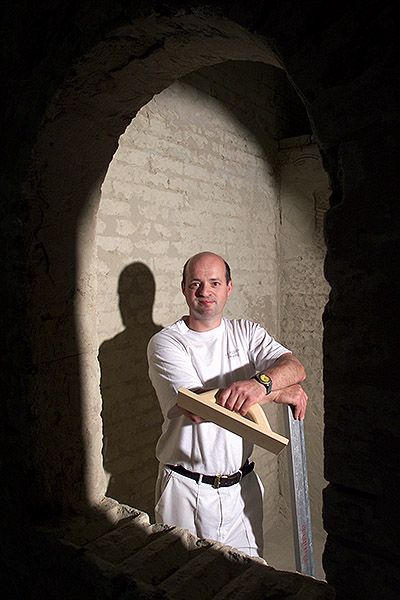
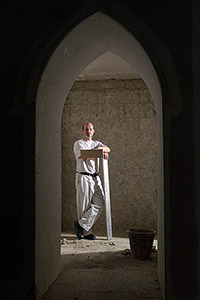
©TSL/Neil Turner. 37 year old retraining as a plasterer  in July 2001.

©TSL/Neil Turner. 37 year old retraining as a plasterer in July 2001.

When most people tai their first steps using lights they try to make the photographs shadowless. The ability to do this is very useful, but sometimes it’s better to place your own shadows exactly where you want them. Some subjects need to be given a distinct treatment.

This portrait of an award winning student was crying out for an unusual image and it was obvious that he would do pretty much anything I asked. The college where he had been studying plastering was a large space divided up into small rooms that the students then practiced their craft in. It was dark and dull coloured with no reflective surfaces so it was pretty much an ideal location for me to work in (apart from the dust).

I quickly spotted a whole series of arches and windows that would serve as a perfect frame to the photograph and set a Lumedyne light up inside the small room.The beauty of working with battery powered kit is that you don’t have to find power points, which were few and far between in the workshop area.

I first tried to shoot with a softbox on the flash unit, but the dull colours and the subjects plain T-shirt made it a pretty boring shot so I decided to shoot without any form of light modifier and removed the softbox in order to get the hard shadow.

The flash exposure was f5.6 at 200 ISO with the softbox in place, but this leapt to f13 with just the metal reflector in place. There was so little available light that everything not lit by the flash was in total darkness. This effect was perfect for the shot. The subject had turned up with few tools and the shot needed a prop or two so we borrowed some plasterers tools and got him to hold them in a way that seemed to relax him. When you are photographing people that are not used to having their picture taken professionally you often need to work as hard at relaxing them as you do in getting the technical bits right. Having some familiar props (teddy bear substitutes) to hand can make all the difference.

I worked hard with this image at getting the composition right by using the arched frame, I tried a couple of other shaped holes too, but this was the best. Getting the shadow in the right place is nothing more or less than trial and error, but using the LCD on the back of a digital SLR helps to shorten that process. I started the shoot working with a 28-70 lens but graduated to a 17-35 pretty quickly. Getting closer to the arch gave me a larger area inside the room to work with and having a six foot tall man, his shadow and some plasterers tools I needed that space.

I think that this photograph helps to demonstrate just how useful adding extra elements into a portrait can be. The props and the shadow help to tell the story as well as making the whole image that little bit more interesting. In the end the picture ran in the newspaper in black and white and the contrast provided by the shadow really helped.

©TSL/Neil Turner. July 2001

©TSL/Neil Turner. July 2001

2013 update and technical footnote:

The camera used was a Canon/Kodak DCS520 with 1.9 megapixels with a Canon 17-35 f2.8L lens. The lighting was a Lumedyne Classic flash system with a 200 w/s pack and a basic head. The DCS520 was great for certain jobs and this kind of lit work suited it down to the ground. The Kodak software was really good and it made it easy to interpolate (upsize) the images by a substantial amount – sometimes as much as 400%.

I used to shoot between 8 and 10 commissions a week and that involved driving an average of 30,000 miles a year. I had an Apple Powerbook G4 and I filed my pictures either using the ISDN line at my flat or using a PCMCIA card with a mobile phone modem built into it. The files that came out of the camera were a native 5.7Mb and generally compressed down to somewhere between 300K and 600K.

I hope to post a few more of these on the blog soon.

Cool watchmakers

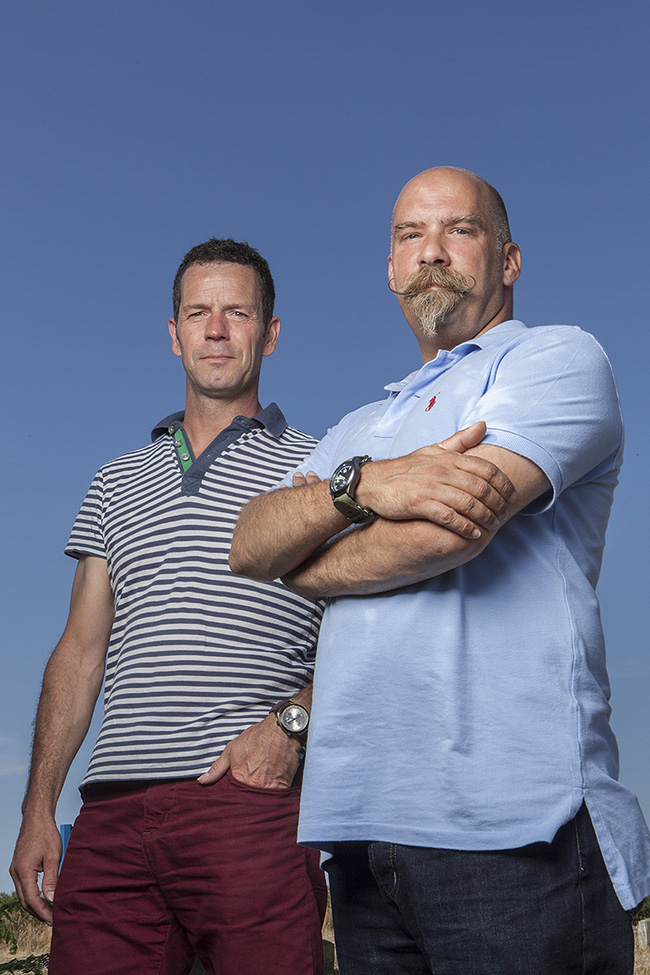
©Neil Turner, July 2013. Alex Brown and Ian Elliott of Elliott Brown.

©Neil Turner, July 2013. Alex Brown and Ian Elliott of Elliott Brown.

I promised to share new work as and when I could and to add a bit of technical detail whilst doing so. This two person portrait shot on a sweltering July day in Dorset for a leading UK business magazine is a great example of the kind of picture I get asked to shoot. The story was a simple one about a new business partnership designing, making and selling very high class mens’ watches.

There was a limited amount of time for the interview, the pictures and a short video grab and so when I got my slot the two subjects, the reporter and the Picture Editor all jumped into my car and we headed about three quarters of a mile from the company offices to shoot on some open heathland because the style of picture I was being asked for needed an expanse of deep blue sky. We couldn’t shoot at the offices because there just too many tall building around and I had to rely on some local knowledge to find the right spot.

The location was far from perfect because I would have liked a decent amount of shade to put my two subjects in. That wasn’t going to be easy and so I had the reporter holding a large black reflector aloft to give me some artificial shade. There was only the slightest breeze but that was enough to force me into something of a ‘plan B’ which was to move into the shade of some tall bushes about fifty yards away. The downside of this was to lose the unbroken blue sky from behind my subjects (you can see some scrubby heath behind them in the bottom of the frame) but it did allow me to balance the flash (single Elinchrom Ranger Quadra with a 32″ x 24″ soft box) with the sky without the subjects being in direct sunshine themselves. Free from his reflector holding duties, the reporter was happy to hold onto the lighting stand to make sure that it didn’t blow over. No matter how light the breeze, soft boxes act like sails!

I have described shooting from the shade a couple of times before and the basic principle is an easy one: the subject is in deep shade and only lit by the flash whereas the rest of the scene is metered normally and the skill comes from balancing the two halves of the exposure. In practice on a bright and sunny day this almost always means the ambient exposure is going to be 1/200th of a second on 200 ISO at somewhere between f16 and f22. All you then need to do is to get enough power out of your flash to balance that. This sometimes means that you have to lose your light modifier (soft box/umbrella etc) if you don’t have a lot of power and almost always means moving the flash quite close to the subject if you want to keep the light modifier in place. Compromise… I’ve used that word once or twice before too. The camera was a Canon EOS5D MkII and the lens was a Canon 24-70 f2.8L.

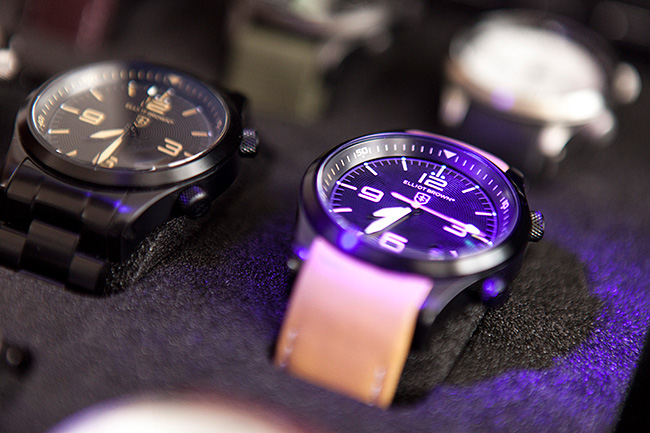
The two guys in the photograph make some very cool watches. It’s a new business by the name of Elliott Brown and their first collection goes on sale about now.

©Neil Turner, July 2103

©Neil Turner, July 2103

Cleaning glass

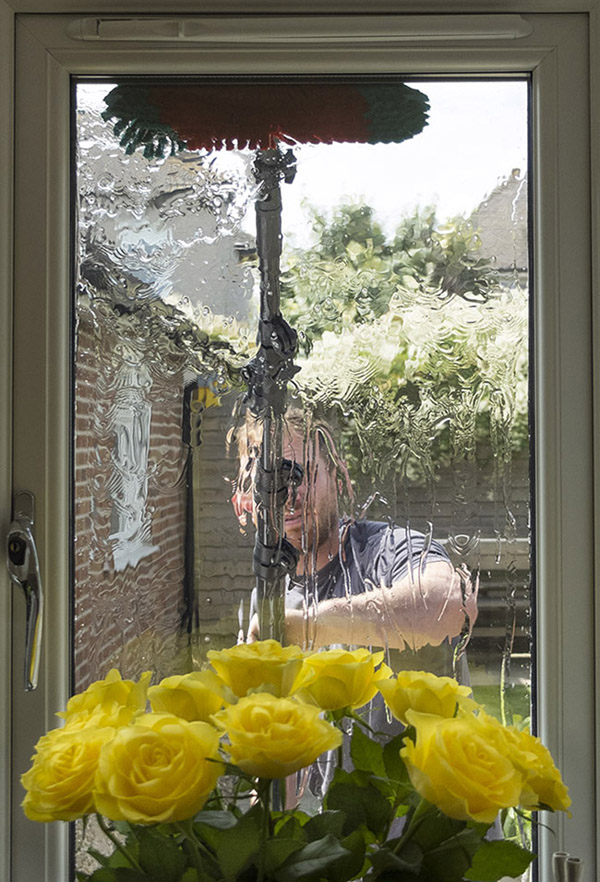
©Neil Turner, August 2013, Bournemouth.

©Neil Turner, August 2013, Bournemouth.

I was looking through a few pictures from this summer this morning when I decided to post this picture just because I liked it. The young man in the photograph is a nephew who has just started his own window cleaning business in the Bournemouth area using filtered water and a long pole instead of ladders, squeegees and chamois leathers. I hope that it takes off and I hope that he gets around to putting this on his website. It was taken with my Fujifilm X20 when I was working at the kitchen table on some pictures that I needed to get to a client and the X20 was the camera that I had to hand.

One thought this morning led, as they inevitably do, to another when I read a posting on a Facebook group by a photographer who has never cleaned their own lenses or their own digital camera chips. Cleaning lenses is too easy to go to the bother of driving to a service centre and parting with money. Obviously if you are at a major sporting event and Canon or Nikon are there you’d be a fool to not take up their offers of free cleaning and checks but beyond that you should learn to do it yourself. I say that as someone who never uses filters on a day-to-day basis as protection and as someone whose home is over 100 miles way from the nearest Canon approved service centre. I also say it as someone who used to be a staff photographer based in London with an employer who picked up the tab for pretty much everything and got quite lazy there for a while! I tend to use the Eclipse solution designed for camera chips along with either a very old quality cotton handkerchief or a soft cloth designed for spectacles. Once I’ve done the glass I usually give the outside of the lens a quick wipe down too – there’s no sense in having dirty gear.

Cleaning camera chips is a whole other matter. Getting it done professionally every once-in-a-while makes sense but at up to £50 + VAT per camera I don’t want to get my chips cleaned as often as I want to get my windows at home done. Of course the “self-cleaning” mechanisms built into today’s cameras really help. In the past it was common to get sizeable amounts of dust on the chip which needed to be removed. These days most of the loose stuff goes away with one or two cycles of the built-in cleaning option. Much of the rest can be loosened or removed using a decent air blower (the rubber bulb type) and if all else fails you can buy the right chemicals and sensor swabs to do a thorough job. If I get an offer of a free clean or I’m having a camera serviced then I always get the chip cleaned too. Canon build in a small sticky strip to catch and keep the dust shaken loose by the piezo-electric motors that do the automatic cleaning every time you turn the camera on and off. The service centre replaces that strip when you take your kit in for an overhaul or repair and it is useful to bear in mind that the strip is only truly effective if a) you have the camera with the baseplate pointing to the ground when the cleaning is in progress and b) the strip gets changed regularly.

Because of the distance I live away from the major repair and service centres I find myself cleaning camera chips using the Eclipse solution every couple of months. It definitely has an effect because I then have to re-calibrate the white balance shifts on the cameras. The end result is that I save a bit of money, a lot of time travelling to and from the service centre and an awful lot of time in post-production not having to remove dust spots. When I travel for work I always take some cleaning kit. I was in India a few years ago now and the dust in my ‘weather sealed’ EOS1D MkII cameras had to be removed on an almost daily basis. I’d hate to think how bad it would have been after a week there without having the kit to do my own cleaning.

It doesn’t have to stop with lenses and chips either. Laptop screens, computer monitors and keyboards are all easy to keep looking their best if you take ten minutes to do so. I used to throw my Domke F-series camera bags into the washing machine (which is how my beautiful grey F1X ended up salmon pink thanks to a stray pair of red socks) and these days I get the vacuum cleaner into my camera bags a couple of times a year.